Chapter 9 Excel - Managerial ACC Need formulas! Budgets
Required information
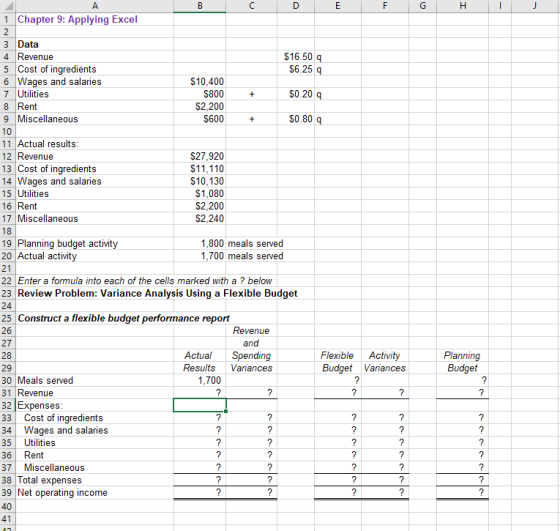
The Chapter 9 Form worksheet is to be used to create your own worksheet version of the Review Problem example in the text.
Download the Applying Excel form and enter formulas in all cells that contain question marks.
For example, in cell B30 enter the formula "= B20".
Notes:
In the text, variances are always displayed as positive numbers. To accomplish this, you can use the ABS() function in Excel. For example, the formula in cell C31 would be "=ABS(E31−B31)".
Cells D31 through D39 and G31 through G39 already contain formulas to compute and display whether variances are Favorable or Unfavorable. Do not enter data or formulas into those cells—if you do, you will overwrite these formulas.
After entering formulas in all of the cells that contained question marks, verify that the amounts match the numbers in the example in the text.
Check your worksheet by changing the revenue in cell D4 to $16.00; the cost of ingredients in cell D5 to $6.50; and the wages and salaries in cell B6 to $10,000. The activity variance for net operating income should now be $850 U and the spending variance for total expenses should be $410 U. If you do not get these answers, find the errors in your worksheet and correct them.
Homework Answers
Request Answer!
We need at least 6 more requests to produce the answer.
4 / 10 have requested this problem solution
The more requests, the faster the answer.
Managerial Accounting - Flexible Budgets/Performance Analysis Excel NEED FORMULAS
 <p><p class="question"><br/></p><p><strong>Download the Applying Excel form and enter formulas in all cells that contain question marks.</strong></p><p> </p><p>For example, in cell B30 enter the formula "= B20".</p><p> </p><p>Notes:</p><p> </p><p>In the text, variances are always displayed as positive numbers. To
accomplish this, you can use the ABS() function in Excel. For example,
the formula in cell C31 would be "=ABS(E31−B31)".</p><p> </p><p>Cells D31 through D39 and G31 through G39 already contain formulas to
compute and display whether variances are Favorable or Unfavorable. Do
not enter data or...
<p><p class="question"><br/></p><p><strong>Download the Applying Excel form and enter formulas in all cells that contain question marks.</strong></p><p> </p><p>For example, in cell B30 enter the formula "= B20".</p><p> </p><p>Notes:</p><p> </p><p>In the text, variances are always displayed as positive numbers. To
accomplish this, you can use the ABS() function in Excel. For example,
the formula in cell C31 would be "=ABS(E31−B31)".</p><p> </p><p>Cells D31 through D39 and G31 through G39 already contain formulas to
compute and display whether variances are Favorable or Unfavorable. Do
not enter data or...
Download the Applying Excel form and enter formulas in all cells that contain question marks. For...
 Download the Applying Excel form and enter formulas in all cells that contain question marks. For example, in cell D21 enter the formula "=D6". Notes: In the text, variances are always displayed as positive numbers. To accomplish this, you can use the ABS() function in Excel. For example, the formula in cell B25 would be "=ABS(F21-F22)". • Cells C25 through C27, C34 through C36, and C43 through C45 already contain formulas to compute and display whether variances are Favorable or...
s with Excel Saved Help Save & Exit Submit Required information The Chapter 9 Form worksheet...
 s with Excel Saved Help Save & Exit Submit Required information The Chapter 9 Form worksheet is to be used to create your own worksheet version of the main example in the text. Download the Applying Excel form and enter formulas in all cells that contain question marks. For example, in cell D21 enter the formula "=D14" Notes: In the text, variances are always displayed as positive numbers. To accomplish this, you can use the ABS() function in Excel. For...
Enter formulas in all cells that contain question marks. For example, in cell B26 Enter formula...
 Enter formulas in all cells that contain question marks. For
example, in cell B26 Enter formula "=B5". Check your worksheet by
changing the budgeted sales in Quarter 2 year 2 in cell C5 to
75,000 units. The total expected cash collections for the year
should now be $2,085,000. If you do not get his answer, find the
errors in the worksheet and correct them. If you find a method
better then the excel method please feel free to do so.
Enter formulas in all cells that contain question marks. For
example, in cell B26 Enter formula "=B5". Check your worksheet by
changing the budgeted sales in Quarter 2 year 2 in cell C5 to
75,000 units. The total expected cash collections for the year
should now be $2,085,000. If you do not get his answer, find the
errors in the worksheet and correct them. If you find a method
better then the excel method please feel free to do so.
Download the Applying Excel form and enter formulas in all cells that contain question marks. For...
 Download the Applying Excel form and enter formulas in
all cells that contain question marks.
For example, in cell B13 enter the formula "= B5".
After entering formulas in all of the cells that contained
question marks, verify that the dollar amounts match the example in
the text.
Check your worksheet by changing the fixed expenses to $270,000.
If your worksheet is operating properly, the degree of operating
leverage should be 10. If you do not get this answer, find...
Download the Applying Excel form and enter formulas in
all cells that contain question marks.
For example, in cell B13 enter the formula "= B5".
After entering formulas in all of the cells that contained
question marks, verify that the dollar amounts match the example in
the text.
Check your worksheet by changing the fixed expenses to $270,000.
If your worksheet is operating properly, the degree of operating
leverage should be 10. If you do not get this answer, find...
Chapter 1 Homework G Saved Help Save & Exit Submit Required information The Chapter 1 Form...
 Chapter 1 Homework G Saved Help Save & Exit Submit Required information The Chapter 1 Form worksheet is to be used to create your own worksheet version of Exhibit 1-7 in the text. Part 1 of 2Download the Applying Excel form and enter formulas in all cells that contain question marks For example, in cell C18 enter the formula"-B6" points After entering formulas in all of the cells that contained question marks, verify that the dollar amounts in both the...
In need of the formulas that will be inputted into the excel sheet? Download the Applying...
 In need of the formulas that will be inputted into the excel
sheet?
Download the Applying Excel form and enter formulas in all cells that contain question marks. For example, in cell B26 enter the formula "B4-B8". that is not in the Review Problem. In this section, it is assumed that the traditional costing system allocates manufacturing overhead on the basis of Note that the worksheet contains a section at the bottom titled "Determine the Product Margin Under a Traditional...
In need of the formulas that will be inputted into the excel
sheet?
Download the Applying Excel form and enter formulas in all cells that contain question marks. For example, in cell B26 enter the formula "B4-B8". that is not in the Review Problem. In this section, it is assumed that the traditional costing system allocates manufacturing overhead on the basis of Note that the worksheet contains a section at the bottom titled "Determine the Product Margin Under a Traditional...
Required information Chapter 4: Applying Excel The Chapter 4 Form worksheet is to be used to...
 Required information Chapter 4: Applying Excel The Chapter 4 Form worksheet is to be used to create your own worksheet version of the Review Problem in the text on pages. Part 1 of 2 Chapter 4: Applying Excel: Excel Worksheet (Part 1 of 2) eBook Download the Applying Excel form and enter formulas in all cells that contain question marks. Enter formulas in the cells that contain question marks. For example, in cell C17 enter the formula "=B8*B10". Print After...
how do I do this spreadsheet in a sense of equations. Download the Applying Excel form...
 how do I do this spreadsheet in a sense of equations.
Download the Applying Excel form and enter formulas in all cells
that contain question marks.
The Chapter 2 Form worksheet is to be used to create your own
worksheet version of the example in the text.
Enter formulas in the cells that contain question marks. For
example, in cell B25 enter the formula "=B10".
After entering formulas in all of the cells that contained
question marks, verify that the...
how do I do this spreadsheet in a sense of equations.
Download the Applying Excel form and enter formulas in all cells
that contain question marks.
The Chapter 2 Form worksheet is to be used to create your own
worksheet version of the example in the text.
Enter formulas in the cells that contain question marks. For
example, in cell B25 enter the formula "=B10".
After entering formulas in all of the cells that contained
question marks, verify that the...
Perfect Parties, Inc. has several divisions, one of which provides birthday parties at their facility, and...
 Perfect Parties, Inc. has several divisions, one of which
provides birthday parties at their facility, and has provided the
actual and planning budget results for the month of June. The
Controller has asked you prepare the Birthday Party Division Budget
Performance Report. Use the information included in the Excel
Simulation and the Excel functions described below to complete the
task.
Cell Reference: Allows you to refer to data
from another cell in the worksheet. From the Excel Simulation
below, if...
Perfect Parties, Inc. has several divisions, one of which
provides birthday parties at their facility, and has provided the
actual and planning budget results for the month of June. The
Controller has asked you prepare the Birthday Party Division Budget
Performance Report. Use the information included in the Excel
Simulation and the Excel functions described below to complete the
task.
Cell Reference: Allows you to refer to data
from another cell in the worksheet. From the Excel Simulation
below, if...
 Download the Applying Excel form and enter formulas in all cells that contain question marks. For example, in cell D21 enter the formula "=D6". Notes: In the text, variances are always displayed as positive numbers. To accomplish this, you can use the ABS() function in Excel. For example, the formula in cell B25 would be "=ABS(F21-F22)". • Cells C25 through C27, C34 through C36, and C43 through C45 already contain formulas to compute and display whether variances are Favorable or...
 s with Excel Saved Help Save & Exit Submit Required information The Chapter 9 Form worksheet is to be used to create your own worksheet version of the main example in the text. Download the Applying Excel form and enter formulas in all cells that contain question marks. For example, in cell D21 enter the formula "=D14" Notes: In the text, variances are always displayed as positive numbers. To accomplish this, you can use the ABS() function in Excel. For...
 Enter formulas in all cells that contain question marks. For
example, in cell B26 Enter formula "=B5". Check your worksheet by
changing the budgeted sales in Quarter 2 year 2 in cell C5 to
75,000 units. The total expected cash collections for the year
should now be $2,085,000. If you do not get his answer, find the
errors in the worksheet and correct them. If you find a method
better then the excel method please feel free to do so.
Enter formulas in all cells that contain question marks. For
example, in cell B26 Enter formula "=B5". Check your worksheet by
changing the budgeted sales in Quarter 2 year 2 in cell C5 to
75,000 units. The total expected cash collections for the year
should now be $2,085,000. If you do not get his answer, find the
errors in the worksheet and correct them. If you find a method
better then the excel method please feel free to do so.
 Download the Applying Excel form and enter formulas in
all cells that contain question marks.
For example, in cell B13 enter the formula "= B5".
After entering formulas in all of the cells that contained
question marks, verify that the dollar amounts match the example in
the text.
Check your worksheet by changing the fixed expenses to $270,000.
If your worksheet is operating properly, the degree of operating
leverage should be 10. If you do not get this answer, find...
Download the Applying Excel form and enter formulas in
all cells that contain question marks.
For example, in cell B13 enter the formula "= B5".
After entering formulas in all of the cells that contained
question marks, verify that the dollar amounts match the example in
the text.
Check your worksheet by changing the fixed expenses to $270,000.
If your worksheet is operating properly, the degree of operating
leverage should be 10. If you do not get this answer, find...
 Chapter 1 Homework G Saved Help Save & Exit Submit Required information The Chapter 1 Form worksheet is to be used to create your own worksheet version of Exhibit 1-7 in the text. Part 1 of 2Download the Applying Excel form and enter formulas in all cells that contain question marks For example, in cell C18 enter the formula"-B6" points After entering formulas in all of the cells that contained question marks, verify that the dollar amounts in both the...
 In need of the formulas that will be inputted into the excel
sheet?
Download the Applying Excel form and enter formulas in all cells that contain question marks. For example, in cell B26 enter the formula "B4-B8". that is not in the Review Problem. In this section, it is assumed that the traditional costing system allocates manufacturing overhead on the basis of Note that the worksheet contains a section at the bottom titled "Determine the Product Margin Under a Traditional...
In need of the formulas that will be inputted into the excel
sheet?
Download the Applying Excel form and enter formulas in all cells that contain question marks. For example, in cell B26 enter the formula "B4-B8". that is not in the Review Problem. In this section, it is assumed that the traditional costing system allocates manufacturing overhead on the basis of Note that the worksheet contains a section at the bottom titled "Determine the Product Margin Under a Traditional...
 Required information Chapter 4: Applying Excel The Chapter 4 Form worksheet is to be used to create your own worksheet version of the Review Problem in the text on pages. Part 1 of 2 Chapter 4: Applying Excel: Excel Worksheet (Part 1 of 2) eBook Download the Applying Excel form and enter formulas in all cells that contain question marks. Enter formulas in the cells that contain question marks. For example, in cell C17 enter the formula "=B8*B10". Print After...
 how do I do this spreadsheet in a sense of equations.
Download the Applying Excel form and enter formulas in all cells
that contain question marks.
The Chapter 2 Form worksheet is to be used to create your own
worksheet version of the example in the text.
Enter formulas in the cells that contain question marks. For
example, in cell B25 enter the formula "=B10".
After entering formulas in all of the cells that contained
question marks, verify that the...
how do I do this spreadsheet in a sense of equations.
Download the Applying Excel form and enter formulas in all cells
that contain question marks.
The Chapter 2 Form worksheet is to be used to create your own
worksheet version of the example in the text.
Enter formulas in the cells that contain question marks. For
example, in cell B25 enter the formula "=B10".
After entering formulas in all of the cells that contained
question marks, verify that the...
 Perfect Parties, Inc. has several divisions, one of which
provides birthday parties at their facility, and has provided the
actual and planning budget results for the month of June. The
Controller has asked you prepare the Birthday Party Division Budget
Performance Report. Use the information included in the Excel
Simulation and the Excel functions described below to complete the
task.
Cell Reference: Allows you to refer to data
from another cell in the worksheet. From the Excel Simulation
below, if...
Perfect Parties, Inc. has several divisions, one of which
provides birthday parties at their facility, and has provided the
actual and planning budget results for the month of June. The
Controller has asked you prepare the Birthday Party Division Budget
Performance Report. Use the information included in the Excel
Simulation and the Excel functions described below to complete the
task.
Cell Reference: Allows you to refer to data
from another cell in the worksheet. From the Excel Simulation
below, if...
Most questions answered within 3 hours.
-
Where is the error in this code sequence?
String s1 = "Hello";
String s2 = "ello";...
asked 11 months ago -
Financial data for Joel de Paris, Inc., for last year
follow:
Joel de Paris, Inc.
Balance...
asked 11 months ago -
Consider this reaction:
Al2(SO4)3 (aq)+ BaCl3
(aq) Al2Cl6 (aq)- +
3BaSO4(s) . What is the...
asked 11 months ago -
Suppose that Savneet is considering increasing her
recent random sample from 20 car rentals to 40...
asked 11 months ago -
Trucks arrive at an unloading terminal at an average rate of 120
per hour.
Trucks arrive...
asked 11 months ago -
Why are methanol and ethanol completely soluble in water while
octanol is not very little soluble....
asked 11 months ago -
A facilities manager at a university reads in a research report
that the mean amount of...
asked 11 months ago -
When the CuSO4 is rehydrated by adding water to the anhydrous
compound, is this an endothermic...
asked 11 months ago -
A ray of sunlight is passing from diamond into crown glass; the
angle of incidence is...
asked 11 months ago -
A block of mass 0.249 kg is placed on top of a light, vertical
spring of...
asked 11 months ago -
how do the kidneys compensate in the presences of acidosis
a) trigger hyperventilate
b) reserve acid...
asked 11 months ago -
Question 501 pts
The rental rate of capital to the firm increases. Which of the
following...
asked 11 months ago