Open an AI platform jupyter notebook and load the invoices and vendors data from big query...
Open an AI platform jupyter notebook and load the invoices and vendors data from big query in to separate pandas dataframes.
Homework Answers
-
Type the following Python code into the next cell to import the BigQuery Python client library and initialize a client. The BigQuery client is used to send and receive messages from the BigQuery API.
from google.cloud import bigquery
client = bigquery.Client()
-
Click Run.
-
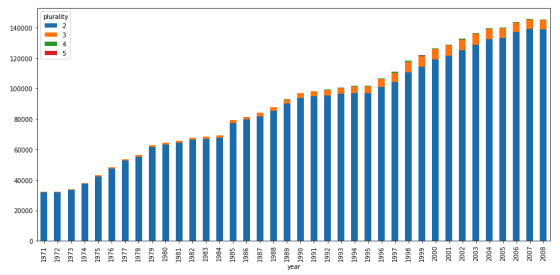
Use the Client.query() method to run a query. In the next cell, enter the following code to run a query to retrieve the annual count of plural births by plurality (2 for twins, 3 for triplets, and so on).
sql = """ SELECT plurality, COUNT(1) AS count, year FROM `bigquery-public-data.samples.natality` WHERE NOT IS_NAN(plurality) AND plurality > 1 GROUP BY plurality, year ORDER BY count DESC """ df = client.query(sql).to_dataframe() df.head() -
Click Run.
-
To chart the query results in your DataFrame, insert the following code into the next cell to pivot the data and create a stacked bar chart of the count of plural births over time.
pivot_table = df.pivot(index='year', columns='plurality', values='count')
pivot_table.plot(kind='bar', stacked=True, figsize=(15, 7));
-
Click Run.
-
The chart appears below the code block.
-
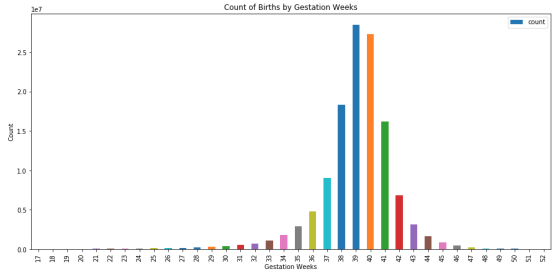
In the next cell, enter the following query to retrieve the count of births by the number of gestation weeks.
sql = """
SELECT
    gestation_weeks,
    COUNT(1) AS count
FROM
    `bigquery-public-data.samples.natality`
WHERE
    NOT IS_NAN(gestation_weeks) AND gestation_weeks <> 99
GROUP BY
    gestation_weeks
ORDER BY
    gestation_weeks
"""
df = client.query(sql).to_dataframe()
Note: Because the gestation_weeks field allows null values and stores unknown values as 99, this query excludes records where gestation_weeks is null or 99.
-
Click Run.
-
To chart the query results in your DataFrame, paste the following code in the next cell.
ax = df.plot(kind='bar', x='gestation_weeks', y='count', figsize=(15,7))
ax.set_title('Count of Births by Gestation Weeks')
ax.set_xlabel('Gestation Weeks')
ax.set_ylabel('Count');
Note: This code plots the data as a bar chart and sets a chart title, x-axis label, and y-axis label. There are many other options you can specify when plotting data. For more information, see pandas.DataFrame.plot in the pandas API reference.
-
Click Run.
-
The bar chart appears below the code block.
Add Answer to:
Open an AI platform jupyter notebook and load the invoices and
vendors data from big query...
Python Programming language. Complete the problems below using Jupyter Notebook. Problem Needs to be solved from...
Python Programming language. Complete the problems below using Jupyter Notebook. Problem Needs to be solved from number #1 link provided for the Data: -----> https://docs.google.com/spreadsheets/d/1TqhyxFKQlOHAyXpQBL-4C96kgZFBoMwUgE8-b33CqPQ/edit?usp=sharing PROBLEMS # 0.0 Import the libraries (pandas, matplotlib, and seaborn) Include the code line: %matplotlib inline #Include the code line: plt.style.use(“ggplot”) #Load the data using pandas #Inspect the data using head(), dtypes ANSWERD: import pandas as pd import matplotlib.pyplot as plt import seaborn as sns plt.style.use('ggplot') %matplotlib inline df = pd.read_csv() print(df.head()) print(df.dtypes) # 1...
Most questions answered within 3 hours.
-
Where is the error in this code sequence?
String s1 = "Hello";
String s2 = "ello";...
asked 10 months ago -
Financial data for Joel de Paris, Inc., for last year
follow:
Joel de Paris, Inc.
Balance...
asked 10 months ago -
Consider this reaction:
Al2(SO4)3 (aq)+ BaCl3
(aq) Al2Cl6 (aq)- +
3BaSO4(s) . What is the...
asked 10 months ago -
Suppose that Savneet is considering increasing her
recent random sample from 20 car rentals to 40...
asked 10 months ago -
Trucks arrive at an unloading terminal at an average rate of 120
per hour.
Trucks arrive...
asked 10 months ago -
Why are methanol and ethanol completely soluble in water while
octanol is not very little soluble....
asked 10 months ago -
A facilities manager at a university reads in a research report
that the mean amount of...
asked 10 months ago -
When the CuSO4 is rehydrated by adding water to the anhydrous
compound, is this an endothermic...
asked 10 months ago -
A ray of sunlight is passing from diamond into crown glass; the
angle of incidence is...
asked 10 months ago -
A block of mass 0.249 kg is placed on top of a light, vertical
spring of...
asked 10 months ago -
how do the kidneys compensate in the presences of acidosis
a) trigger hyperventilate
b) reserve acid...
asked 10 months ago -
Question 501 pts
The rental rate of capital to the firm increases. Which of the
following...
asked 10 months ago