Provide screenshots and detail instructions of how to do the following things in Windows Sever 2016 1. How to create an...
Provide screenshots and detail instructions of how to do the following things in Windows Sever 2016
1. How to create an MMC console
2. How to create user and groups
3. How to add users to groups
4. How to configure NTFS permissions
Homework Answers
1.
- In Windows Server 2016, switch to the Start screen and type mmc. In Windows 10, type mmc in the search box on the taskbar.
- Select MMC in the search results pane.
- In the MMC window, press CTRL+M to add a snap-in to the console.
- In the Add or Remove Snap-ins dialog, click Advanced.
- In the Advanced dialog, check Allow changing
the parent snap-in and then click
OK.
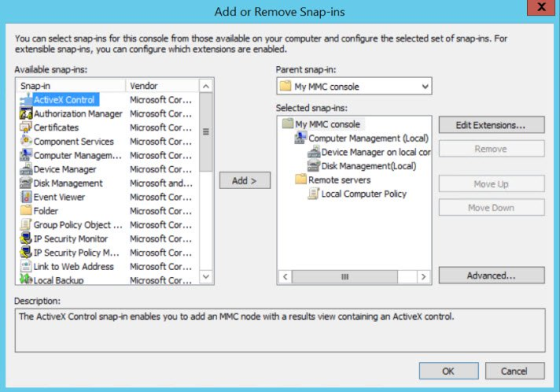
- In the Add or Remove Snap-ins dialog, scroll through the list of available snap-ins and double click Computer Management. In the Computer Management dialog, select Local computer under This snap-in will always manage, and then click Finish.
- In the right of Add or Remove Snap-ins, click the Parent snap-in dropdown menu and select Computer Managementfrom the list.
- In the Add or Remove Snap-ins dialog, scroll through the list of available snap-ins and double click Device Manager. In the Device Manager dialog, select Local computer under This snap-in will always manage, and then click Finish.
What’s important to note here is how Device Manager appears as a child object of Computer Management, and not Console Root. If you want to add another root object, in the right of Add or Remove Snap-ins, click the Parent snap-in dropdown menu and select Console Root from the list. If you have a lot of snap-ins or groups of snap-ins that you’d like to organize in a console, note that there’s also a snap-in called Folder that be added and used to organize snap-ins.
![Console1- [My MMC console Computer Management (Local)] File Action View Favorites Window Help My MMC console Name Actions Com](http://img.homeworklib.com/images/95d55f41-89bc-4ec6-8c61-53ac57eebb12.png?x-oss-process=image/resize,w_560)
- Once you’re done adding snap-ins to the console, click OK in the Add or Remove Snap-ins dialog.
- In the main console window, right click Console Root, select Rename from the menu and give it a name appropriate for your customized console. You can repeat this process for Folder snap-ins.
- Press CTRL+S to save the MMC. In the Save As dialog, choose a location, give the MMC file a name and click Save. The default save location is the Administrative Tools folder.
Further customization options allow you to restrict user access to the console and change the default icon:
- In the console window, click File > Options.
- To change the console icon, click Change Icon in the Options dialog and select one of the available icons, or click Browseto select a .dll file that contains the icon you’d like to use. Click OK when you’re done.
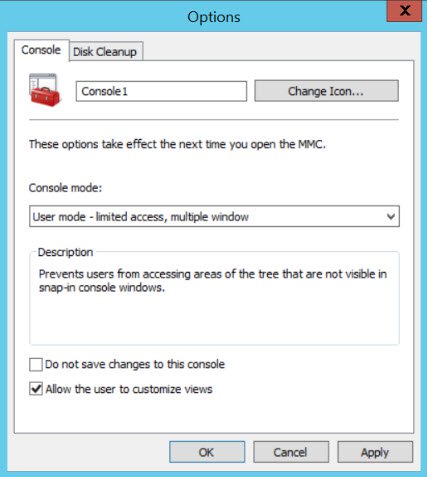
- In the Options dialog, you can choose a Console mode using the dropdown menu. Author is the default mode and allows full access to modify the console. But you can also choose from three different User modes. When you select a mode in the Console mode dropdown menu, a description of what the mode allows the user to do is given.
- When you’re done with all customizations in the Options dialog, click OK.
2.
Right click the Start Menu and choose Computer Management.

In the Computer Management window click on Local Users and Groups and right click the Users folder. Select New User.

Once you create the user, you can then go to the left pane in the window and expand Local Users and Groups, then, click the Groups folder and double click Remote Desktop Users Group.
Click Add. Then, in the Select Users window you can enter the name of the session you just created in the given field. Click on Check Names next to it and the name will become underlined as an indication that the user was found and accepted.

Also, in the instance in which this may be practical, you can
set up a general access to all sessions to connect and interact
with the server. In such case, in the Select Users window,
you can enter the word: Everyone. Click on Check Names and
the name will become underlined as an indication that the entry was
accepted. Now all connecting sessions will be admitted.

3.
just right-click the start menu and then click on Computer Management

Then expand the Local Users & Groups tree and right-click on Users and choose New User:

Fill out the New User form that comes up. remember to check Password never expires at the bottom:

Then click on Create.
If you want to add this account to the Administrators group, then click on on the Groups folder under local Users and Groups and double-click on the Administrators group:

Then click on Add on the screen that popup, type the name of the account you just created, then hit Apply then OK

sign out from your administrator account And login back with the account you just created..
4.
I’ve gone and setup some users and groups to play with inside of an Organizational Unit (OU). Bob and Sam are part of the People group. CEO is part of the CEO grp group. I also have the CEO grp group in the People group so that the CEO can keep an eye on Bob and Sam’s work.

I’ve also gone and created some folders within the Shares folder for us to edit the permissions of.

To change the NTFS Permissions we’ll first need to disable inherited permissions. By default it’ll be on for all folders you create in the Shares folder meaning we can’t remove the Everyone group from subfolders within the Share unless we disable inheritance first.


Once you’ve done that, click OK and you’ll now be able to edit the NTFS Permissions however you like. We can edit the CEO’s folder so that only they have permission to it now.

Remove the Everyone group, click add and type the group you would like to add.

I did the same to the Work folder, removing the Everyone group and adding the Peoplegroup. Now when the User Sam tries to view the share this is what they see.

However when the CEO view the share they see this.

Add Answer to:
Provide screenshots and detail instructions of how to do the following things in Windows Sever 2016 1. How to create an...
PLEASE USE WINDOWS SERVER 2016 AND PROVIDE DETAILED STEPS ALONG WITH SCREENSHOTS FOR EACH STEP! (LITERALLY...
PLEASE USE WINDOWS SERVER 2016 AND PROVIDE DETAILED STEPS ALONG WITH SCREENSHOTS FOR EACH STEP! (LITERALLY EACH STEP!!) note** if you don't have windows server 2016, use virtual box and download the ISO image for the datacenter edition 1. How to assign NTFS permissions 2. How to Audit NTFS permissions 3. How to create shares 4. How to share permissions
Step 3: How would you write this script in C? It needs to do the things...
 Step 3: How would you write this script in C? It needs to do the
things required in step 3.
1. You have received a new batch of distinguished users; their basic information is located in newusers.tar. Inside of the tar file, there is a file called "newusers.txt" which contains a colon-separated entry for each user: the username, the uid, the GECOS information, and the user's preferred shell. Also in the tar file you will find a public key for...
Step 3: How would you write this script in C? It needs to do the
things required in step 3.
1. You have received a new batch of distinguished users; their basic information is located in newusers.tar. Inside of the tar file, there is a file called "newusers.txt" which contains a colon-separated entry for each user: the username, the uid, the GECOS information, and the user's preferred shell. Also in the tar file you will find a public key for...
1. the commands you used to create the directories and files in Linux and Windows; 2....
1. the commands you used to create the directories and files in Linux and Windows; 2. the commands you used to determine default permissions in Linux and Windows; 3. the commands you used to change permissions on your files in Linux and Windows; 4. a paragraph about how directories and file permissions work and what was the same or different between Windows and Linux.
CSCI 3619 LAB 1 Create a report file Lastname.lab1docx to save screenshots and notes from the...
CSCI 3619 LAB 1 Create a report file Lastname.lab1docx to save screenshots and notes from the lab. Install VMWare Workstation on your laptop or desktop system. Configure the following VM Guest machines and Install Operating Systems. CX619WS1 = Install Windows Server 2012 R2 from Imagine and enable RDP and enable Web server. CX619UB1= Install Ubuntu current 18.04.1 LTS CX619WT1 = Install Windows 10 from Imagine. CX619KL1 = Install Current Kali Linux 64 Bit Take/paste a screenshot to provide evidence of...
Please provide screenshots for the following so, I may see how the commands work thank you....
Please provide screenshots for the following so, I may see how the commands work thank you. Create a new folder called "SharedEngrSales". Configure it so that users from the engr-sales group can share documents for both read and write among themselves Start the following long-running process: "tree / > tree.out". Quickly, before it finishes, pause the process and put it in the background. Type a command (perhaps "ls") and then bring the background process to the foreground Start another long-running...
CSCI 3619 LAB 1 Create a report file Lastname.lab1docx to save screenshots and notes from the lab. Install VMWare Work...
CSCI 3619 LAB 1 Create a report file Lastname.lab1docx to save screenshots and notes from the lab. Install VMWare Workstation on your laptop or desktop system. Configure the following VM Guest machines and Install Operating Systems. CX619WS1 = Install Windows Server 2012 R2 from Imagine and enable RDP and enable Web server. CX619UB1= Install Ubuntu current 18.04.1 LTS CX619WT1 = Install Windows 10 from Imagine. CX619KL1 = Install Current Kali Linux 64 Bit Take/paste a screenshot to provide evidence of...
Need help with this assignment. Need code and screenshots. Using SQL Developer and SQLPlus Here is...
Need help with this assignment. Need code and screenshots. Using SQL Developer and SQLPlus Here is the information. 1. Create user user1 a. The default tablespace is USERS. b. The temporary tablespace is TEMP. c. The account is initially locked. d. The user account will be assigned to DEFAULT profile. e. The USERS tablespace has a 10 MB quota. provide your statement here 2. Use SQLPlus to connect as user1. Explain what happened and way to fix it. 3. Give...
Do the following steps on Kali and show the evidence of screenshots. 1) Create an account...
Do the following steps on Kali and show the evidence of screenshots. 1) Create an account of your name (screenshot 1) 2) Set the password to your account (screenshot 2) 3) Create a pass.txt file that contains multiple words including your password (screenshot 3) 4) Pick the IP address of your Kali to issue the ncrack command (command 1) 5) The output of the ncrack execution should show your password (screenshot 4)
Using Kali Linux, the Windows Linux Sub-System, or another Debian based Linux distribution, perform the following...
 Using Kali Linux, the Windows Linux Sub-System, or another Debian based Linux distribution, perform the following tasks based on the Linux Fundamentals lecture. For this lab, take screenshots for all major steps completed to illustrate that each task was successfully completed the same method as would be used for other labs). Tasks: 1. Create a new user named Billy Bob using the command linter face 2. Add Billy Bob to the sudoers group 3. Update and upgrade your Linux distribution...
Task 2.6 : In this exercise, you will create a script to echo users, based on...
Task 2.6 : In this exercise, you will create a script to echo users, based on a list of usernames in a file. 1. create a new file called userlist. #vi userlist 2. Insert a short list of usernames, such as the following. Make sure that none are the names of existing users. moe larry curly binny 3. create a script file userscript.sh and type the following lines #!/bin/bash for TheUSER in $(cat userlist) do echo The user is $TheUSER...
 Step 3: How would you write this script in C? It needs to do the
things required in step 3.
1. You have received a new batch of distinguished users; their basic information is located in newusers.tar. Inside of the tar file, there is a file called "newusers.txt" which contains a colon-separated entry for each user: the username, the uid, the GECOS information, and the user's preferred shell. Also in the tar file you will find a public key for...
Step 3: How would you write this script in C? It needs to do the
things required in step 3.
1. You have received a new batch of distinguished users; their basic information is located in newusers.tar. Inside of the tar file, there is a file called "newusers.txt" which contains a colon-separated entry for each user: the username, the uid, the GECOS information, and the user's preferred shell. Also in the tar file you will find a public key for...
 Using Kali Linux, the Windows Linux Sub-System, or another Debian based Linux distribution, perform the following tasks based on the Linux Fundamentals lecture. For this lab, take screenshots for all major steps completed to illustrate that each task was successfully completed the same method as would be used for other labs). Tasks: 1. Create a new user named Billy Bob using the command linter face 2. Add Billy Bob to the sudoers group 3. Update and upgrade your Linux distribution...
Most questions answered within 3 hours.
-
Where is the error in this code sequence?
String s1 = "Hello";
String s2 = "ello";...
asked 10 months ago -
Financial data for Joel de Paris, Inc., for last year
follow:
Joel de Paris, Inc.
Balance...
asked 10 months ago -
Consider this reaction:
Al2(SO4)3 (aq)+ BaCl3
(aq) Al2Cl6 (aq)- +
3BaSO4(s) . What is the...
asked 10 months ago -
Suppose that Savneet is considering increasing her
recent random sample from 20 car rentals to 40...
asked 10 months ago -
Trucks arrive at an unloading terminal at an average rate of 120
per hour.
Trucks arrive...
asked 10 months ago -
Why are methanol and ethanol completely soluble in water while
octanol is not very little soluble....
asked 10 months ago -
A facilities manager at a university reads in a research report
that the mean amount of...
asked 10 months ago -
When the CuSO4 is rehydrated by adding water to the anhydrous
compound, is this an endothermic...
asked 10 months ago -
A ray of sunlight is passing from diamond into crown glass; the
angle of incidence is...
asked 10 months ago -
A block of mass 0.249 kg is placed on top of a light, vertical
spring of...
asked 10 months ago -
how do the kidneys compensate in the presences of acidosis
a) trigger hyperventilate
b) reserve acid...
asked 10 months ago -
Question 501 pts
The rental rate of capital to the firm increases. Which of the
following...
asked 10 months ago