Configure VM network settings. Paste a screen capture here that shows the VM network settings for...
Configure VM network settings. Paste a screen capture here that shows the VM network settings for your virtual machine.
Homework Answers
Enabling Network settings in Virtual Machine:
- The Virtual Machine Network in a virtual machine Settings window allows the user in configuring the VirtualBox to obtain virtual network cards to the Virtual Machine, and their operations.
- When the virtual machine is set up initially the VirtualBox by default enables one virtual network card. The network card then selects the "Network Address Translation" (NAT) mode for the Virtual machine.
- The guest can then connect to the outside world by using the host's networking and the outside world can connect to services of the guest, which enables the user choose to make visible outside of the virtual machine.
- The default setup is good for probably 95% of VirtualBox users. The VirtualBox is extremely flexible in virtualizing the network. It supports many virtual network cards per virtual machine.
- The first four can be configured in detail in the Manager window. Additional network cards can be configured on the command line with VBoxManage.
Add Answer to:
Configure VM network settings. Paste a screen capture here that
shows the VM network settings for...
Scanning Subtask 1 Place your one Kali VM and one XP VM on the same virtual...
Scanning Subtask 1 Place your one Kali VM and one XP VM on the same virtual network. Perform an XMAS scan on the XP machine, while capturing the packets between them. You should submit the following. 1. A short explanation of the differences you see in the XMAS scan against the Windows machine versus against what happened when scanning the Kali machine. Reference your packet capture in the explanation.
A smart speaker has no screen or keypad for changing its settings. Order three steps to...
A smart speaker has no screen or keypad for changing its settings. Order three steps to configure the speaker. a. Connect the smartphone to the speaker's Wi-Fi hotspot. b. Download the speaker's app to a smartphone. c. Enter the password to the home Wi-Fi network. d. Enter the password to the speaker's Wi-Fi hotspot.
CSCI 3619 LAB 1 Create a report file Lastname.lab1docx to save screenshots and notes from the lab. Install VMWare Work...
CSCI 3619 LAB 1 Create a report file Lastname.lab1docx to save screenshots and notes from the lab. Install VMWare Workstation on your laptop or desktop system. Configure the following VM Guest machines and Install Operating Systems. CX619WS1 = Install Windows Server 2012 R2 from Imagine and enable RDP and enable Web server. CX619UB1= Install Ubuntu current 18.04.1 LTS CX619WT1 = Install Windows 10 from Imagine. CX619KL1 = Install Current Kali Linux 64 Bit Take/paste a screenshot to provide evidence of...
CSCI 3619 LAB 1 Create a report file Lastname.lab1docx to save screenshots and notes from the...
CSCI 3619 LAB 1 Create a report file Lastname.lab1docx to save screenshots and notes from the lab. Install VMWare Workstation on your laptop or desktop system. Configure the following VM Guest machines and Install Operating Systems. CX619WS1 = Install Windows Server 2012 R2 from Imagine and enable RDP and enable Web server. CX619UB1= Install Ubuntu current 18.04.1 LTS CX619WT1 = Install Windows 10 from Imagine. CX619KL1 = Install Current Kali Linux 64 Bit Take/paste a screenshot to provide evidence of...
. VIRGIN 9:45 AM 187% X COMP3066 Week 04 - 05 Assig... ... COMP3066-Week 04 -...
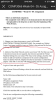 . VIRGIN 9:45 AM 187% X COMP3066 Week 04 - 05 Assig... ... COMP3066-Week 04 - 05 Assignment This is an individual assignment. • The completed work will have to be demonstrated to the instructor and uploaded to the drop box no later than the beginning of the Week 06 class. Objective: To configure the network services manually on Open SUSE Linux. IMPORTANT: 1. Change your Linux host name to your LASTNAME- FIRSTTWOLETTERSOFTHEFISTNAME. For example my, Nikolai Ivanov, host name...
Run Linux Lite. Determine Linux Lite network settings from the command line. Be able to use...
Run Linux Lite. Determine Linux Lite network settings from the command line. Be able to use the Linux ls command to view files and directories. Be able to use the Linux dot dot notation to view parts of the Linux file system. Run two Linux Lite sessions on the one computer. Analyse Wireshark traffic. Capture DNS or ARP traffic with Wireshark. please show your every steps of screen short and explanation.
• Explain briefly different network adapter types (Bridged, NAT, Host-only, LAN Segment)? • Why “bridged” network...
• Explain briefly different network adapter types (Bridged, NAT, Host-only, LAN Segment)? • Why “bridged” network adapter type is not preferred in production network? • In the case of NAT, who provides the DHCP and NAT services? • Explain briefly the steps involved in creating your own LAN using virtual machines? • What is virtual machine’s configuration file extension? • What is virtual machine’s virtual hard disk drive file extension? • What is the purpose of ‘Connect To Server’? •...
Type or paste question here IP Address: 192.144.96.0 Subnet Mask: 255.255.240.0 find Network address, Broadcast address,...
Type or paste question here IP Address: 192.144.96.0 Subnet Mask: 255.255.240.0 find Network address, Broadcast address, first valid host address, last valid host address and number of valid hosts in the network. show very clear steps for all the calculations.
Figure 1 LAN Subnet: 192.168.40.0124 LAN Switch Internet External Firewall Internal Firewall DMZ Subnet: 192.168.10.0/24 LAN devices Web Server running on port 80 IDS (Snort VM) Remote Access S...
 Figure 1 LAN Subnet: 192.168.40.0124 LAN Switch Internet External Firewall Internal Firewall DMZ Subnet: 192.168.10.0/24 LAN devices Web Server running on port 80 IDS (Snort VM) Remote Access Server (Nginx VM) (OpenVPN) Overview Medium to large organisations typically consist of services that are accessed/consumed from external parties for various purposes. As such, a DMZ is a suitable solution to segregate such services from internal networkis). The network diagram provided (Figure 1) illustrates the IT environment of a medium organisation, which...
Question 1: Go into your firewall settings on your Windows system or the virtual machine you...
Question 1: Go into your firewall settings on your Windows system or the virtual machine you are using here. You can find them in Control Panel, System and Security, Windows Firewall. What are the settings for your Incoming Connections (should be listed underneath the status of your firewall)? Question 2 Go into Allow apps to communicate through the Windows Firewall. What apps are allowed? HTML Editor Keyboard Shortcuts Question 3 Are there any that you were surprised to see allowed...
 . VIRGIN 9:45 AM 187% X COMP3066 Week 04 - 05 Assig... ... COMP3066-Week 04 - 05 Assignment This is an individual assignment. • The completed work will have to be demonstrated to the instructor and uploaded to the drop box no later than the beginning of the Week 06 class. Objective: To configure the network services manually on Open SUSE Linux. IMPORTANT: 1. Change your Linux host name to your LASTNAME- FIRSTTWOLETTERSOFTHEFISTNAME. For example my, Nikolai Ivanov, host name...
 Figure 1 LAN Subnet: 192.168.40.0124 LAN Switch Internet External Firewall Internal Firewall DMZ Subnet: 192.168.10.0/24 LAN devices Web Server running on port 80 IDS (Snort VM) Remote Access Server (Nginx VM) (OpenVPN) Overview Medium to large organisations typically consist of services that are accessed/consumed from external parties for various purposes. As such, a DMZ is a suitable solution to segregate such services from internal networkis). The network diagram provided (Figure 1) illustrates the IT environment of a medium organisation, which...
Most questions answered within 3 hours.
-
Where is the error in this code sequence?
String s1 = "Hello";
String s2 = "ello";...
asked 10 months ago -
Financial data for Joel de Paris, Inc., for last year
follow:
Joel de Paris, Inc.
Balance...
asked 10 months ago -
Consider this reaction:
Al2(SO4)3 (aq)+ BaCl3
(aq) Al2Cl6 (aq)- +
3BaSO4(s) . What is the...
asked 10 months ago -
Suppose that Savneet is considering increasing her
recent random sample from 20 car rentals to 40...
asked 10 months ago -
Trucks arrive at an unloading terminal at an average rate of 120
per hour.
Trucks arrive...
asked 10 months ago -
Why are methanol and ethanol completely soluble in water while
octanol is not very little soluble....
asked 10 months ago -
A facilities manager at a university reads in a research report
that the mean amount of...
asked 10 months ago -
When the CuSO4 is rehydrated by adding water to the anhydrous
compound, is this an endothermic...
asked 10 months ago -
A ray of sunlight is passing from diamond into crown glass; the
angle of incidence is...
asked 10 months ago -
A block of mass 0.249 kg is placed on top of a light, vertical
spring of...
asked 10 months ago -
how do the kidneys compensate in the presences of acidosis
a) trigger hyperventilate
b) reserve acid...
asked 10 months ago -
Question 501 pts
The rental rate of capital to the firm increases. Which of the
following...
asked 10 months ago