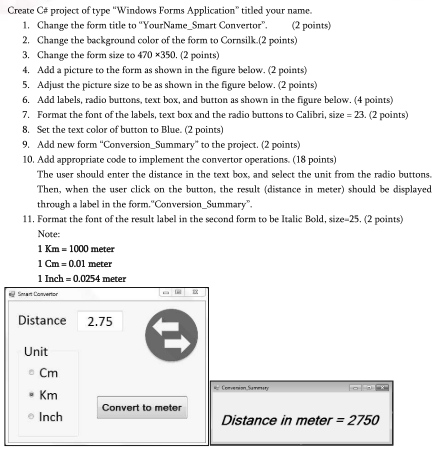
I need the whole and correct code
Form1.cs
Form1.Designer.cs
Form2.cs
Form2.Designer.cs
program.cs
everything in details
Homework Answers
All the Designer and Form Logic files are given below within their respective tables. You are required to create the Project and add a 2nd Windows form named Conversion_Summary.cs and then copy the below codes and paste into their respective files and save. And then finally you can run the application to test it.
*************************************** MAIN FORM ******************************************
| Form1.cs |
|
using System; namespace Distance_Converter // Method to execute when convert button is clicked // helper method to convert entered distance to meters // check if centi meter radio button is checked // check if kilo meter radio button is checked // check if inch radio button is checked // else display the message to select the unit radio button, if
none of the |
| Form1.Designer.cs |
|
namespace Distance_Converter /// <summary> #region Windows Form Designer generated code /// <summary> } #endregion private System.Windows.Forms.Label lbl_distance; |
**************************** CONVERSION SUMMARY FORM ************************************
| Conversion_Summary.cs |
|
using System; namespace Distance_Converter |
| Conversion_Summary.Designer.cs |
|
namespace Distance_Converter /// <summary> #region Windows Form Designer generated code /// <summary> } #endregion public System.Windows.Forms.Label lbl_result; |
| Program.cs |
|
using System; namespace Distance_Converter |
Important Note: The Conversion_Summary.cs and Program.cs code file need not to be changed in the Project, they are automatically generated and no changes is done. I Have posted the codes because you asked in the question.
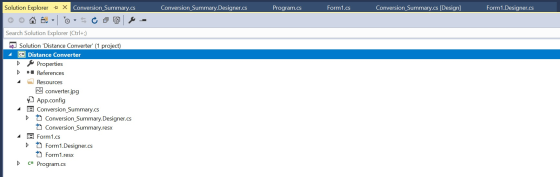
Project Screenshot
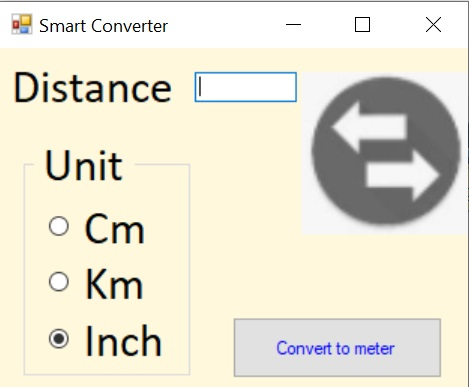
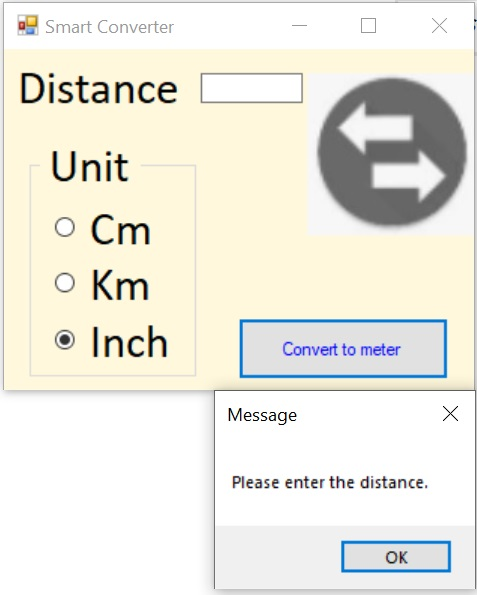
Output
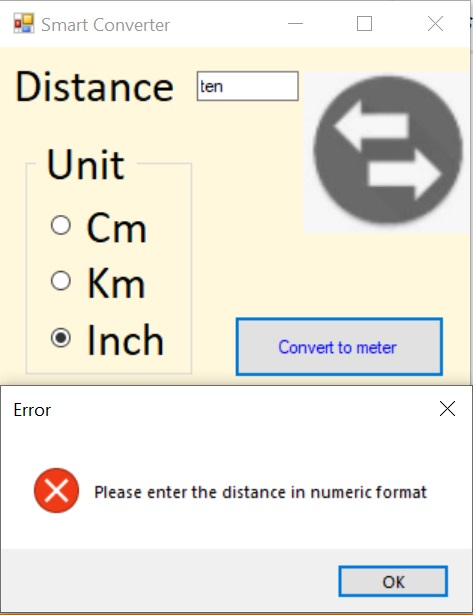
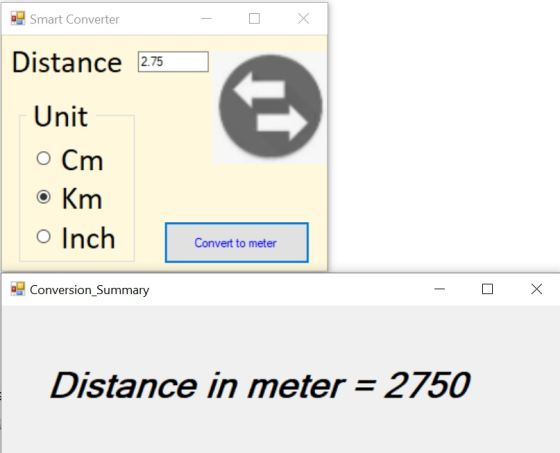
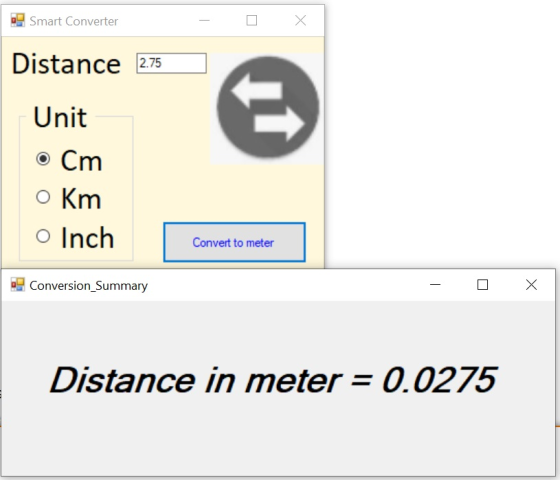
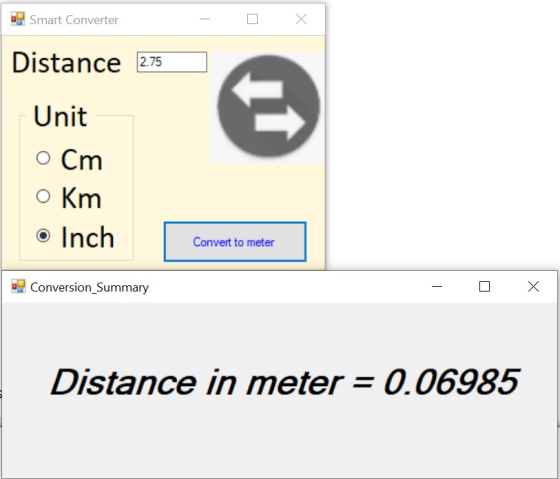
Please mention your doubts within the comments section and kindly give a thumbs up if you liked the Solution.
Add Answer to:
I need the whole and correct code
Form1.cs
Form1.Designer.cs
Form2.cs
Form2.Designer.cs
program.cs
everything in details
Create...
1. Create a Java application that will change the appearance of a string as shown in...
 1. Create a Java application that will change the appearance of
a string as shown in the picture.
2. The program will include a panel, label, checkboxes, radio
buttons, and list.
3. To change color, set up 4 radio buttons in a button group.
The colors are Black, Red, Green, and Blue to be selected. The
default color is Black.
4. To change the font size, set up a list. The sizes are 18, 26,
38, and 56 to be...
1. Create a Java application that will change the appearance of
a string as shown in the picture.
2. The program will include a panel, label, checkboxes, radio
buttons, and list.
3. To change color, set up 4 radio buttons in a button group.
The colors are Black, Red, Green, and Blue to be selected. The
default color is Black.
4. To change the font size, set up a list. The sizes are 18, 26,
38, and 56 to be...
MyMenuFrame.java, MyMenuFrameTest.java, a. The title of the frame is “MyNotepad”. b. Create and add border layout....
MyMenuFrame.java, MyMenuFrameTest.java, a. The title of the frame is “MyNotepad”. b. Create and add border layout. c. Create a text area to display contents. Add the text area to the center of the border layout. d. Create a menu bar. e. Create a file menu. Set mnemonic for file menu. It is “F”. File menu includes three menu items. f. Add a separator between each menu item in the file menu. i. Open 1. Add a short cut for...
Create two classes following the model shown in Chapter 19. Assuming your data form's subject is ...
 Here's the pizza example
layout.Need Help with this program.
Java
ser interface: Here are the groupings trom the pizza u Size Pepperoni Anchovies Smal edium Large Your Price: Create two classes following the model shown in Chapter 19. Assuming your data form's subject is X (though l expect better names), you need to provide the following classes: 1. XFormFrame, as a subclass of JFrame, responsible for creating and operating the form 2. XFormViewer, your main program responsible for creating the...
Here's the pizza example
layout.Need Help with this program.
Java
ser interface: Here are the groupings trom the pizza u Size Pepperoni Anchovies Smal edium Large Your Price: Create two classes following the model shown in Chapter 19. Assuming your data form's subject is X (though l expect better names), you need to provide the following classes: 1. XFormFrame, as a subclass of JFrame, responsible for creating and operating the form 2. XFormViewer, your main program responsible for creating the...
I NEED SOME HELP WITH THIS PLEASE :) 1. Create a data entry form on one...
 I NEED SOME HELP WITH THIS PLEASE
:)
1. Create a data entry form on one of your web pages for visitors who want to be added to your mailing list. Include one of each of the following input elements*: Text <input type="text".... • Tel <input type="tel".... . Email <input type="email"... Date <input type="date"... . A set of radio buttons <input type="radio"... • A set of check boxes <input type="checkbox"... • A select element with options <select>.....</select> (do NOT add...
I NEED SOME HELP WITH THIS PLEASE
:)
1. Create a data entry form on one of your web pages for visitors who want to be added to your mailing list. Include one of each of the following input elements*: Text <input type="text".... • Tel <input type="tel".... . Email <input type="email"... Date <input type="date"... . A set of radio buttons <input type="radio"... • A set of check boxes <input type="checkbox"... • A select element with options <select>.....</select> (do NOT add...
Visual Studio Code C# Well Document everyline saying what the code does. Include designer code and...
 Visual Studio Code C#
Well Document everyline saying what the code
does.
Include designer code and .cscode
Extra 6-1 Create a simple calculator In this exercise, you'l1 create a form that accepts two operands and an operator from the user and then performs the requested operation. Simple Calculator Operand 1: 86 Operator Operand 2 11.11 Resut 7.7408 1. Start a new project named SimpleCalculator in the Extra Exercises Chapter 06SimpleCalculator directory 2. Add labels, text boxes, and buttons to the...
Visual Studio Code C#
Well Document everyline saying what the code
does.
Include designer code and .cscode
Extra 6-1 Create a simple calculator In this exercise, you'l1 create a form that accepts two operands and an operator from the user and then performs the requested operation. Simple Calculator Operand 1: 86 Operator Operand 2 11.11 Resut 7.7408 1. Start a new project named SimpleCalculator in the Extra Exercises Chapter 06SimpleCalculator directory 2. Add labels, text boxes, and buttons to the...
In this exercise, you’ll add code to a form that converts the value the user enters...
 In this exercise, you’ll add code to a form that converts the
value the user enters based on the selected conversion type.
The application should handle the following conversions:
1. Open the Conversions project. Display the code for the form,
and notice the rectangular array whose rows contain the value to be
displayed in the combo box, the text for the labels that identify
the two text boxes, and the multiplier for the conversion as shown
above. Note: An array...
In this exercise, you’ll add code to a form that converts the
value the user enters based on the selected conversion type.
The application should handle the following conversions:
1. Open the Conversions project. Display the code for the form,
and notice the rectangular array whose rows contain the value to be
displayed in the combo box, the text for the labels that identify
the two text boxes, and the multiplier for the conversion as shown
above. Note: An array...
How can I add this function to my C# code?: Validate that if the user clicks...
 How can I add this function to my C# code?:
Validate that if the user clicks the “OK” button, a “Seating
Category” is selected, and at least one ticket is being purchased.
If not, pop-up a dialog box asking the user to enter the needed
data for the transaction. What we want to avoid is depicted in See
Figure 3.
Figure 3:
This code asks for a seating category to be selected, how many
tickets to be purchased, and if...
How can I add this function to my C# code?:
Validate that if the user clicks the “OK” button, a “Seating
Category” is selected, and at least one ticket is being purchased.
If not, pop-up a dialog box asking the user to enter the needed
data for the transaction. What we want to avoid is depicted in See
Figure 3.
Figure 3:
This code asks for a seating category to be selected, how many
tickets to be purchased, and if...
I. User Interface Create a JavaFX application with a graphical user interface (GUI) based on the...
I. User Interface Create a JavaFX application with a graphical user interface (GUI) based on the attached “GUI Mock-Up”. Write code to display each of the following screens in the GUI: A. A main screen, showing the following controls: • buttons for “Add”, “Modify”, “Delete”, “Search” for parts and products, and “Exit” • lists for parts and products • text boxes for searching for parts and products • title labels for parts, products, and the application title B. An add...
The Gui has all the right buttons, but from there i get lost. I need to...
The Gui has all the right buttons, but from there i get lost. I need to know whats wrong with my assignment can someone please help. The code I have so far is listed below, could you please show me the errors in my code. PYTHON Create the GUI(Graphical User Interface). Use tkinter to produce a form that looks much like the following. It should have these widgets. Temperature Converter GUI Enter a temperature (Entry box) Convert to Fahrenheit...
Project 2 Description Create a Visual C# project that when an employee's biweekly sales amount is...
Project 2 Description Create a Visual C# project that when an employee's biweekly sales amount is entered and the Calculate button is pressed, the gross pay, deductions, and net pay will be displayed. Each employee will receive a base pay of $1200 plus a sales commission of 8% of sales. Once the net pay has been calculated, display the budget amount for each category listed below based on the percentages given. base pay = $1200; use a named...
 1. Create a Java application that will change the appearance of
a string as shown in the picture.
2. The program will include a panel, label, checkboxes, radio
buttons, and list.
3. To change color, set up 4 radio buttons in a button group.
The colors are Black, Red, Green, and Blue to be selected. The
default color is Black.
4. To change the font size, set up a list. The sizes are 18, 26,
38, and 56 to be...
1. Create a Java application that will change the appearance of
a string as shown in the picture.
2. The program will include a panel, label, checkboxes, radio
buttons, and list.
3. To change color, set up 4 radio buttons in a button group.
The colors are Black, Red, Green, and Blue to be selected. The
default color is Black.
4. To change the font size, set up a list. The sizes are 18, 26,
38, and 56 to be...
 Here's the pizza example
layout.Need Help with this program.
Java
ser interface: Here are the groupings trom the pizza u Size Pepperoni Anchovies Smal edium Large Your Price: Create two classes following the model shown in Chapter 19. Assuming your data form's subject is X (though l expect better names), you need to provide the following classes: 1. XFormFrame, as a subclass of JFrame, responsible for creating and operating the form 2. XFormViewer, your main program responsible for creating the...
Here's the pizza example
layout.Need Help with this program.
Java
ser interface: Here are the groupings trom the pizza u Size Pepperoni Anchovies Smal edium Large Your Price: Create two classes following the model shown in Chapter 19. Assuming your data form's subject is X (though l expect better names), you need to provide the following classes: 1. XFormFrame, as a subclass of JFrame, responsible for creating and operating the form 2. XFormViewer, your main program responsible for creating the...
 I NEED SOME HELP WITH THIS PLEASE
:)
1. Create a data entry form on one of your web pages for visitors who want to be added to your mailing list. Include one of each of the following input elements*: Text <input type="text".... • Tel <input type="tel".... . Email <input type="email"... Date <input type="date"... . A set of radio buttons <input type="radio"... • A set of check boxes <input type="checkbox"... • A select element with options <select>.....</select> (do NOT add...
I NEED SOME HELP WITH THIS PLEASE
:)
1. Create a data entry form on one of your web pages for visitors who want to be added to your mailing list. Include one of each of the following input elements*: Text <input type="text".... • Tel <input type="tel".... . Email <input type="email"... Date <input type="date"... . A set of radio buttons <input type="radio"... • A set of check boxes <input type="checkbox"... • A select element with options <select>.....</select> (do NOT add...
 Visual Studio Code C#
Well Document everyline saying what the code
does.
Include designer code and .cscode
Extra 6-1 Create a simple calculator In this exercise, you'l1 create a form that accepts two operands and an operator from the user and then performs the requested operation. Simple Calculator Operand 1: 86 Operator Operand 2 11.11 Resut 7.7408 1. Start a new project named SimpleCalculator in the Extra Exercises Chapter 06SimpleCalculator directory 2. Add labels, text boxes, and buttons to the...
Visual Studio Code C#
Well Document everyline saying what the code
does.
Include designer code and .cscode
Extra 6-1 Create a simple calculator In this exercise, you'l1 create a form that accepts two operands and an operator from the user and then performs the requested operation. Simple Calculator Operand 1: 86 Operator Operand 2 11.11 Resut 7.7408 1. Start a new project named SimpleCalculator in the Extra Exercises Chapter 06SimpleCalculator directory 2. Add labels, text boxes, and buttons to the...
 In this exercise, you’ll add code to a form that converts the
value the user enters based on the selected conversion type.
The application should handle the following conversions:
1. Open the Conversions project. Display the code for the form,
and notice the rectangular array whose rows contain the value to be
displayed in the combo box, the text for the labels that identify
the two text boxes, and the multiplier for the conversion as shown
above. Note: An array...
In this exercise, you’ll add code to a form that converts the
value the user enters based on the selected conversion type.
The application should handle the following conversions:
1. Open the Conversions project. Display the code for the form,
and notice the rectangular array whose rows contain the value to be
displayed in the combo box, the text for the labels that identify
the two text boxes, and the multiplier for the conversion as shown
above. Note: An array...
 How can I add this function to my C# code?:
Validate that if the user clicks the “OK” button, a “Seating
Category” is selected, and at least one ticket is being purchased.
If not, pop-up a dialog box asking the user to enter the needed
data for the transaction. What we want to avoid is depicted in See
Figure 3.
Figure 3:
This code asks for a seating category to be selected, how many
tickets to be purchased, and if...
How can I add this function to my C# code?:
Validate that if the user clicks the “OK” button, a “Seating
Category” is selected, and at least one ticket is being purchased.
If not, pop-up a dialog box asking the user to enter the needed
data for the transaction. What we want to avoid is depicted in See
Figure 3.
Figure 3:
This code asks for a seating category to be selected, how many
tickets to be purchased, and if...
Most questions answered within 3 hours.
-
Where is the error in this code sequence?
String s1 = "Hello";
String s2 = "ello";...
asked 10 months ago -
Financial data for Joel de Paris, Inc., for last year
follow:
Joel de Paris, Inc.
Balance...
asked 10 months ago -
Consider this reaction:
Al2(SO4)3 (aq)+ BaCl3
(aq) Al2Cl6 (aq)- +
3BaSO4(s) . What is the...
asked 10 months ago -
Suppose that Savneet is considering increasing her
recent random sample from 20 car rentals to 40...
asked 10 months ago -
Trucks arrive at an unloading terminal at an average rate of 120
per hour.
Trucks arrive...
asked 10 months ago -
Why are methanol and ethanol completely soluble in water while
octanol is not very little soluble....
asked 10 months ago -
A facilities manager at a university reads in a research report
that the mean amount of...
asked 10 months ago -
When the CuSO4 is rehydrated by adding water to the anhydrous
compound, is this an endothermic...
asked 10 months ago -
A ray of sunlight is passing from diamond into crown glass; the
angle of incidence is...
asked 10 months ago -
A block of mass 0.249 kg is placed on top of a light, vertical
spring of...
asked 10 months ago -
how do the kidneys compensate in the presences of acidosis
a) trigger hyperventilate
b) reserve acid...
asked 10 months ago -
Question 501 pts
The rental rate of capital to the firm increases. Which of the
following...
asked 10 months ago