how can i Draw with Excel the curve of the hardness as a function of the...
how can i Draw with Excel the curve of the hardness as a function of the distance from the series of coordinates obtained by interpolating the data and saved in your .csv file. Use Excel's scatter chart. Format the data series to decrease the size of the marker. Insert the image of the curve obtained in your report. Observe the curve and the points provided in file 1 and comment on whether this curve makes sense.
i need a code on visual basic for example for this file.txt:
MATERIAL:Inox 304L 3/16 po
WELDING:Soudage au plasma
0.050:221.23;222.06;220.17
0.200:229.34;231.58;230.51
0.250:237.89;237.73;237.95
0.400:245.12;244.98;244.14
0.550:215.66;216.58;215.51
0.750:173.34;175.25;174.12
0.800:174.23;173.41;173.35
Homework Answers
Excel Charts Scatter
Scatter (X Y) charts are typically used for showing and comparing numeric values, like scientific, statistical, and engineering
data.
A Scatter Chart has two value axes
1. Horizontal (x) value axis
2. Vertical (y) value axis
It combines x and y values into single data points and shows them in irregular intervals, or clusters.
Consider using a Scatter chart when −
1. You want to change the scale of the horizontal axis.
2. You want to make that axis a logarithmic scale.
3. Values for horizontal axis are not evenly spaced.
4. There are many data points on the horizontal axis.
5. You want to adjust the independent axis scales of a scatter chart to reveal more information about the data that includes
pairs or grouped sets of values.
6. You want to show similarities between large sets of data instead of the differences between the data points.
Follow the steps given below to insert a Scatter chart in your worksheet.
Step 1 − Arrange the data in columns or rows on the worksheet.
Step 2 − Place the x values in one row or column, and then enter the corresponding y values in the adjacent rows or
columns.
Step 3 − Select the data.
Step 4 − On the INSERT tab, in the Charts group, click the Scatter chart icon on the Ribbon.
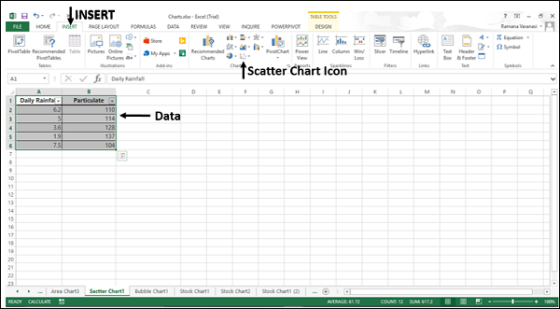
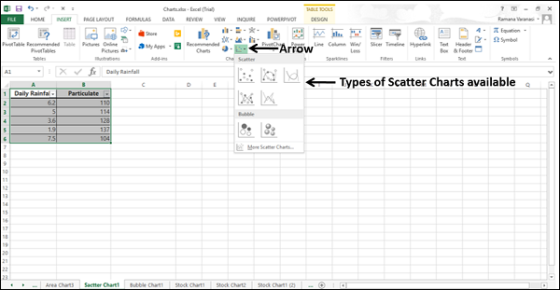
You will see the different types of available Scatter charts.
A Scatter chart has the following sub-types
1. Scatter
2. Scatter with Smooth Lines and Markers
3. Scatter with Smooth Lines
4. Scatter with Straight Lines and Markers
5. Scatter with Straight Lines
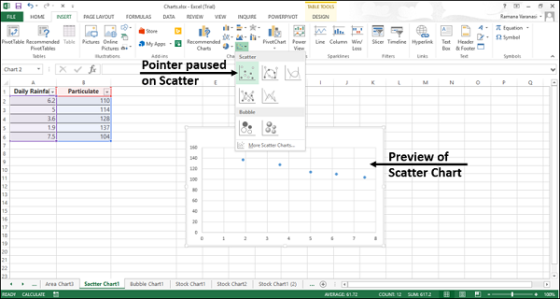
Step 5 − Point your mouse on each of the icons. A preview of that chart type will be shown on the worksheet.
Step 6 − Double-click the chart type that suits your data.
you will understand when each of the Scatter chart is useful.
Scatter Chart
Scatter charts are useful to compare at least two sets of values or pairs of data. Scatter charts show relationships between
sets of values.
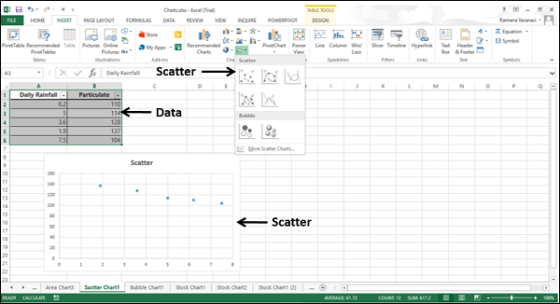
Use Scatter charts when the data represents separate measurements.
Types of Scatter Charts
The following section explains the different options available to display a Scatter chart.
Scatter with smooth lines and markers and scatter with smooth lines.
Scatter with Smooth Lines and Markers and Scatter with Smooth Lines display a smooth curve that connects the data points.
Scatter with Smooth Lines and Markers and Scatter with Smooth Lines are useful to compare at least two sets of values or
pairs of data.
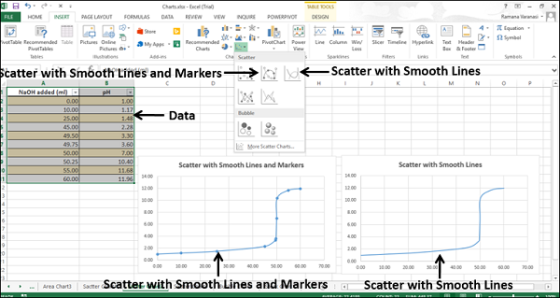
Use Scatter with Smooth Lines and Markers and Scatter with Smooth Lines charts when the data represents a set of x, y
pairs based on a formula.
1. Use Scatter with Smooth Lines and Markers when there are a few data points.
2. Use Scatter with Smooth Lines when there are many data points.
Scatter with Straight Lines and Markers and Scatter with Straight Lines
Scatter with Straight Lines and Markers and Scatter with Straight Lines connects the data points with straight lines. Scatter
with Straight Lines and Markers and Scatter with Straight Lines are useful to compare at least two sets of values or pairs
of data.
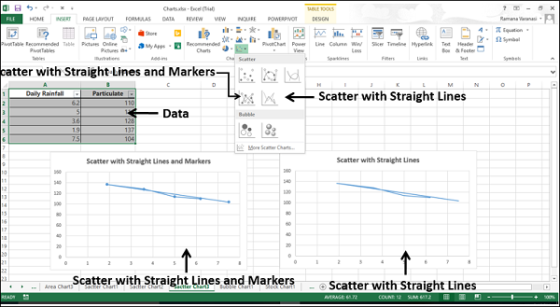
Use Scatter with Straight Lines and Markers and Scatter with Straight Lines charts when the data represents separate measurements
1. Use Scatter with Straight Lines and Markers when there are a few data points.
2. Use Scatter with Straight Lines when there are many data points.
Add Answer to:
how can i Draw with Excel the curve of the hardness as a
function of the...
hey how can I delete the first two lines of this file and copy the rest...
hey how can I delete the first two lines of this file and copy the rest in an array with the split function in visual basic so I need an example for this file file: ATERIAL:Inox 304L 3/16 po WELDING:Soudage au plasma 0.050:221.23;222.06;220.17 0.200:229.34;231.58;230.51 0.250:237.89;237.73;237.95 0.400:245.12;244.98;244.14 0.550:215.66;216.58;215.51 0.750:173.34;175.25;174.12 0.800:174.23;173.41;173.35
Physics 195 - Straight-line kinematics E. Graph 2: Plot instantaneous velocity as a function of time....
 Physics 195 - Straight-line kinematics E. Graph 2: Plot instantaneous velocity as a function of time. NOTE: LEAVE W OF THE LEFT SIDE OF THE GRAPH PAPER FREE IN ORDER TO FIND THE INTERCEPT ON THE TIME AXIS (see diagram below). Rewrite your instantaneous velocity values from column (4) in the table below next to their corresponding time values. Remember that you can treat your average velocity data in column (4) as an instantaneous velocity if you remember that the...
 Physics 195 - Straight-line kinematics E. Graph 2: Plot instantaneous velocity as a function of time. NOTE: LEAVE W OF THE LEFT SIDE OF THE GRAPH PAPER FREE IN ORDER TO FIND THE INTERCEPT ON THE TIME AXIS (see diagram below). Rewrite your instantaneous velocity values from column (4) in the table below next to their corresponding time values. Remember that you can treat your average velocity data in column (4) as an instantaneous velocity if you remember that the...
Most questions answered within 3 hours.
-
Where is the error in this code sequence?
String s1 = "Hello";
String s2 = "ello";...
asked 11 months ago -
Financial data for Joel de Paris, Inc., for last year
follow:
Joel de Paris, Inc.
Balance...
asked 11 months ago -
Consider this reaction:
Al2(SO4)3 (aq)+ BaCl3
(aq) Al2Cl6 (aq)- +
3BaSO4(s) . What is the...
asked 11 months ago -
Suppose that Savneet is considering increasing her
recent random sample from 20 car rentals to 40...
asked 11 months ago -
Trucks arrive at an unloading terminal at an average rate of 120
per hour.
Trucks arrive...
asked 11 months ago -
Why are methanol and ethanol completely soluble in water while
octanol is not very little soluble....
asked 11 months ago -
A facilities manager at a university reads in a research report
that the mean amount of...
asked 11 months ago -
When the CuSO4 is rehydrated by adding water to the anhydrous
compound, is this an endothermic...
asked 11 months ago -
A ray of sunlight is passing from diamond into crown glass; the
angle of incidence is...
asked 11 months ago -
A block of mass 0.249 kg is placed on top of a light, vertical
spring of...
asked 11 months ago -
how do the kidneys compensate in the presences of acidosis
a) trigger hyperventilate
b) reserve acid...
asked 11 months ago -
Question 501 pts
The rental rate of capital to the firm increases. Which of the
following...
asked 11 months ago