To do list - Javascript Javascript(only) needs to be added in order to do the following: Add...
To do list - Javascript
Javascript(only) needs to be added in order to do the following:
- Add a new todo item to the list, complete with trash icon
- Remove the item when the trash icon is clicked
- Clear the input when the user clicks back into it to add another item.
This is already in place in the JS window: (codepen)
(function(){
})();
HTML:
<div class="card">
<div class="card-body">
<h3 class="card-title">Today's To Do List</h3>
<form id="todo-form">
<div class="form-group">
<input type="text" class="form-control" id="todo-input" placeholder="What else do you need to do?">
</div>
<div class="form-group">
<input type="submit" id="todo-btn" class="btn btn-secondary btn-block" value="Add Item To List">
</div>
</form>
</div>
<ul class="list-group list-group-flush" id="todo-ul">
<li class="list-group-item">Pick up groceries
<i class="fas fa-trash-alt"></i>
</li>
<li class="list-group-item">Finish essay
<i class="fas fa-trash-alt"></i>
</li>
<li class="list-group-item">Soccer @ 5:00
<i class="fas fa-trash-alt"></i>
</ul>
</div>
CSS:
body
{
background-color: #34495e;
font-family: 'Lato', sans-serif;
}
button {
margin: 0 auto;
float: right;
}
.centered {
margin: 0 auto;
width: 80%
}
.card {
margin: 50px auto;
width: 18rem;
}
i{
float:right;
padding-top:5px
}
Homework Answers
Here is code:
<!DOCTYPE html>
<html lang="en">
<head>
<title>Bootstrap Example</title>
<meta charset="utf-8">
<meta name="viewport" content="width=device-width, initial-scale=1">
<link rel="stylesheet" href="https://maxcdn.bootstrapcdn.com/bootstrap/3.3.7/css/bootstrap.min.css">
<script src="https://ajax.googleapis.com/ajax/libs/jquery/3.3.1/jquery.min.js"></script>
<script src="https://maxcdn.bootstrapcdn.com/bootstrap/3.3.7/js/bootstrap.min.js"></script>
<link href="https://stackpath.bootstrapcdn.com/font-awesome/4.7.0/css/font-awesome.min.css" rel="stylesheet"
integrity="sha384-wvfXpqpZZVQGK6TAh5PVlGOfQNHSoD2xbE+QkPxCAFlNEevoEH3Sl0sibVcOQVnN" crossorigin="anonymous">
</head>
<script>
var items = [{
item: "Pick up groceries"
},
{
item: "Finish essay"
},
{
item: "Soccer @ 5:00"
}
]
function addItem(element) {
var li = document.createElement("li");
li.className = "list-group-item";
li.innerText = element.item;
var i = document.createElement("i");
i.className = "fa fa-trash";
i.onclick = (event) => {
document.getElementById("todo-ul").removeChild(li);
}
li.appendChild(i)
document.getElementById("todo-ul").appendChild(li);
}
window.onload = () => {
items.forEach(element => {
addItem(element);
});
}
function addToItem() {
addItem({
item: document.getElementById("todo-input").value
})
document.getElementById("todo-input").value = "";
return false;
}
</script>
<style>
body {
background-color: #34495e;
font-family: 'Lato', sans-serif;
}
button {
margin: 0 auto;
float: right;
}
.centered {
margin: 0 auto;
width: 80%
}
.card {
margin: 50px auto;
width: 18rem;
}
i {
float: right;
padding-top: 5px
}
</style>
<body>
<div class="card">
<div class="card-body">
<h3 class="card-title">Today's To Do List</h3>
<form id="todo-form" onsubmit="return addToItem()">
<div class="form-group">
<input type="text" class="form-control" id="todo-input" placeholder="What else do you need to do?">
</div>
<div class="form-group">
<input type="submit" id="todo-btn" class="btn btn-secondary btn-block" value="Add Item To List">
</div>
</form>
</div>
<ul class="list-group list-group-flush" id="todo-ul">
<!-- <li class="list-group-item">Pick up groceries
<i class="fa fa-trash"></i>
</li>
<li class="list-group-item">Finish essay
<i class="fa fa-trash"></i>
</li>
<li class="list-group-item">Soccer @ 5:00
<i class="fa fa-trash"></i>
</li> -->
</ul>
</div>
</body>
</html>
Output:

Add Answer to:
To do list - Javascript
Javascript(only) needs to be added in order to do the
following:
Add...
To do list - Javascript Javascript(only) needs to be added in order to do the following:...
To do list - Javascript Javascript(only) needs to be added in order to do the following: Add a new todo item to the list, complete with trash icon Remove the item when the trash icon is clicked Clear the input when the user clicks back into it to add another item. This is already in place in the JS window: (codepen) (function(){ })(); HTML: <div class="card"> <div class="card-body"> <h3 class="card-title">Today's To Do List</h3> <form id="todo-form"> <div class="form-group"> <input type="text" class="form-control"...
JQuery- need help with the option to Edit the items on To-Do list program...either an option...
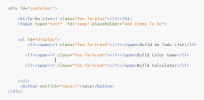 JQuery- need help with the option to Edit the
items on To-Do list program...either an option for edit
button or double clicking the item will enable user to edit the
list
<div id="container"> <hl>To-Do List<i class=" fas fa-plus"></i></hl> <input type ="text" ame' placeholder="Add Items To Do" id-'nan kul id-"display" <li><span>i class="fas fa-trash"></i></span> Build An Todo List</li> <li><span><i class="fas fa-trash"></i></span>Build Color Game</li> <li><span><i class="fas fa-trash"></i></span> Build Calculator</li> </ul> <button onclick="save ()">save< /button> </div> ("ul").on("click", "li",function () 5 $(this).toggleclass ("completed"); 6 7...
JQuery- need help with the option to Edit the
items on To-Do list program...either an option for edit
button or double clicking the item will enable user to edit the
list
<div id="container"> <hl>To-Do List<i class=" fas fa-plus"></i></hl> <input type ="text" ame' placeholder="Add Items To Do" id-'nan kul id-"display" <li><span>i class="fas fa-trash"></i></span> Build An Todo List</li> <li><span><i class="fas fa-trash"></i></span>Build Color Game</li> <li><span><i class="fas fa-trash"></i></span> Build Calculator</li> </ul> <button onclick="save ()">save< /button> </div> ("ul").on("click", "li",function () 5 $(this).toggleclass ("completed"); 6 7...
In this problem, you will create a selectable “To Do” List. To add a task to...
 In this problem, you will create a selectable “To Do” List. To
add a task to this list, the user clicks the Add Task button and
enters a description of the task. To delete a task from the list,
the user selects the task and then clicks the Delete Task
button.
Open the HTML and JavaScript files provided as start-up files
(index.html from within todo_list_Q.zip file). Then,
review the HTML in this file. Note, within the div element, there
is...
In this problem, you will create a selectable “To Do” List. To
add a task to this list, the user clicks the Add Task button and
enters a description of the task. To delete a task from the list,
the user selects the task and then clicks the Delete Task
button.
Open the HTML and JavaScript files provided as start-up files
(index.html from within todo_list_Q.zip file). Then,
review the HTML in this file. Note, within the div element, there
is...
JavaScript Question: Select only the second element with the class '.container'. Assign it to a variable...
JavaScript Question: Select only the second element with the class '.container'. Assign it to a variable named `container`. Code snippets of the sections with "container:" <nav class="navbar navbar-expand-lg"> <div class="container"> <a title="someUniversity" class="navbar-brand order-1 mr-0" href="#" target="_blank">Presented by someUniversity JavaScript Course</a> <div class="" id="navbarNavAltMarkup"> <div class="navbar-nav"> <a class="nav-item nav-link" href="#home">Home <span class="sr-only">(current)</span></a> <a class="nav-item nav-link" href="#about">About</a> <a class="nav-item nav-link" href="#speakers">Speakers</a> <a class="nav-item nav-link" href="#schedule">Schedule</a> </div> </div> </div> <div class="jumbotron jumbotron-fluid text-white"> <div class="container text-sm-center pt-5"> <h1 class="display-2">JavaScript Conference</h1> <p class="lead">A...
given below are the project description and their Html and css files i need javascript according...
 given below are the project description and their Html and css
files i need javascript according to the project and other
files!
WEB230 - JavaScript 1 Assignment 6b - Event Delegation Before starting, study the HTML and open it in a browser so that you understand the structure of the document. You will add functionality to perform several tasks in our shopping list app. Clicking the red "X" at the right of an item will delete that item. Clicking on...
given below are the project description and their Html and css
files i need javascript according to the project and other
files!
WEB230 - JavaScript 1 Assignment 6b - Event Delegation Before starting, study the HTML and open it in a browser so that you understand the structure of the document. You will add functionality to perform several tasks in our shopping list app. Clicking the red "X" at the right of an item will delete that item. Clicking on...
JavaScript (Please debug this code) When a user enters a string in the input box, the...
JavaScript (Please debug this code) When a user enters a string in the input box, the program is designed to add the string to an array. When the array reaches a certain length, the program displays all the users' entries in a list on the page. When you finish debugging, the user's entry in the input box should be cleared each time the submit button is clicked. Additionally, after five strings are submitted, the entire list of submitted strings should...
NEED HELP DIRECTIONS: Notice that there is one input area and two buttons There is a...
NEED HELP DIRECTIONS: Notice that there is one input area and two buttons There is a place in the HTML reserved for < li > elements under the heading “Shopping List” Write a javascript program that will cause whatever the user inputs to be placed in a newly -created < li > tag and the tag placed inside the < ul > element whenever the user clicks the button Your program must not create any < li > tag is...
HTML Coding <html> <head> <title> Contact -- Charles Robertson </title> </head> <body bgcolor="white"> <table width="700" height="500"...
HTML Coding <html> <head> <title> Contact -- Charles Robertson </title> </head> <body bgcolor="white"> <table width="700" height="500" border="10"> <!-----row---1----logo---> <tr><td> <img src="20150516_084745" width="700" height="200"> </td></tr> <!-----row-2-navigation-----> <tr><td> <!----start-navigation-table----> <table width="700" height="100" border="5" bgcolor="lightgreen" > <tr><td><a href="HerbFarm.html"> <center> HOME </center></a></td> <td><a href="about3.html"> <center> ABOUT </center></a></td> <td><a href="contact3.html"> <center> CONTACT </center></a></td> <td><a href="gallery3.html"> <center> GALLERY </center></a></td> </tr> </table> <!------end-navigation-table----> </td></tr> <tr><td> <h1>Contact </h1> <form action="thankyou.html"> </form> <div class="row"> <div class="col-75"> <div class="container"> <form action="/action_page.php"> <div class="row"> <div class="col-50"> <h3>Billing Address</h3> <label for="fname"><i...
Please edit and add all the code needed to make the images side by side and to put the buttons in...
 Please edit and add all the code needed to make the images side
by side and to put the buttons in the middle of the images. Thank
you
index.html
<!DOCTYPE html>
<html lang="en">
<head>
<meta charset="utf-8">
<meta http-equiv="X-UA-Compatible"
content="IE=edge">
<meta name="viewport" content="width=device-width,
initial-scale=1">
<title>Untitled Document</title>
<!-- Bootstrap -->
<link href="css/bootstrap-4.0.0.css"
rel="stylesheet">
<link href="style.css" rel="stylesheet"
type="text/css">
<link rel="stylesheet"
href="https://cdnjs.cloudflare.com/ajax/libs/font-awesome/4.7.0/css/font-awesome.min.css">
</head>
<body>
<header>
<nav class="navbar navbar-expand-lg navbar-light
bg-light"> <a class="navbar-brand" href="#">Lakeside
Resort Spot</a>
<button class="navbar-toggler"
type="button" data-toggle="collapse"
data-target="#navbarSupportedContent1"
aria-controls="navbarSupportedContent1" aria-expanded="false"
aria-label="Toggle navigation">...
Please edit and add all the code needed to make the images side
by side and to put the buttons in the middle of the images. Thank
you
index.html
<!DOCTYPE html>
<html lang="en">
<head>
<meta charset="utf-8">
<meta http-equiv="X-UA-Compatible"
content="IE=edge">
<meta name="viewport" content="width=device-width,
initial-scale=1">
<title>Untitled Document</title>
<!-- Bootstrap -->
<link href="css/bootstrap-4.0.0.css"
rel="stylesheet">
<link href="style.css" rel="stylesheet"
type="text/css">
<link rel="stylesheet"
href="https://cdnjs.cloudflare.com/ajax/libs/font-awesome/4.7.0/css/font-awesome.min.css">
</head>
<body>
<header>
<nav class="navbar navbar-expand-lg navbar-light
bg-light"> <a class="navbar-brand" href="#">Lakeside
Resort Spot</a>
<button class="navbar-toggler"
type="button" data-toggle="collapse"
data-target="#navbarSupportedContent1"
aria-controls="navbarSupportedContent1" aria-expanded="false"
aria-label="Toggle navigation">...
<!DOCTYPE html> <html> <head> <!-- JavaScript 6th Edition Chapter 4 Hands-on Project 4-3 Author: Da...
<!DOCTYPE html> <html> <head> <!-- JavaScript 6th Edition Chapter 4 Hands-on Project 4-3 Author: Date: Filename: index.htm --> <meta charset="utf-8" /> <meta name="viewport" content="width=device-width, initial-scale=1.0" /> <title>Hands-on Project 4-3</title> <link rel="stylesheet" href="styles.css" /> <script src="modernizr.custom.05819.js"></script> </head> <body> <header> <h1> Hands-on Project 4-3 </h1> </header> <article> <div id="results"> <p id="resultsExpl"></p> <ul> <li id="item1"></li> <li id="item2"></li> <li id="item3"></li> <li id="item4"></li> <li id="item5"></li> </ul> </div> <form> <fieldset> <label for="placeBox" id="placeLabel"> Type the name of a place, then click Submit: </label> <input type="text" id="placeBox"...
 JQuery- need help with the option to Edit the
items on To-Do list program...either an option for edit
button or double clicking the item will enable user to edit the
list
<div id="container"> <hl>To-Do List<i class=" fas fa-plus"></i></hl> <input type ="text" ame' placeholder="Add Items To Do" id-'nan kul id-"display" <li><span>i class="fas fa-trash"></i></span> Build An Todo List</li> <li><span><i class="fas fa-trash"></i></span>Build Color Game</li> <li><span><i class="fas fa-trash"></i></span> Build Calculator</li> </ul> <button onclick="save ()">save< /button> </div> ("ul").on("click", "li",function () 5 $(this).toggleclass ("completed"); 6 7...
JQuery- need help with the option to Edit the
items on To-Do list program...either an option for edit
button or double clicking the item will enable user to edit the
list
<div id="container"> <hl>To-Do List<i class=" fas fa-plus"></i></hl> <input type ="text" ame' placeholder="Add Items To Do" id-'nan kul id-"display" <li><span>i class="fas fa-trash"></i></span> Build An Todo List</li> <li><span><i class="fas fa-trash"></i></span>Build Color Game</li> <li><span><i class="fas fa-trash"></i></span> Build Calculator</li> </ul> <button onclick="save ()">save< /button> </div> ("ul").on("click", "li",function () 5 $(this).toggleclass ("completed"); 6 7...
 In this problem, you will create a selectable “To Do” List. To
add a task to this list, the user clicks the Add Task button and
enters a description of the task. To delete a task from the list,
the user selects the task and then clicks the Delete Task
button.
Open the HTML and JavaScript files provided as start-up files
(index.html from within todo_list_Q.zip file). Then,
review the HTML in this file. Note, within the div element, there
is...
In this problem, you will create a selectable “To Do” List. To
add a task to this list, the user clicks the Add Task button and
enters a description of the task. To delete a task from the list,
the user selects the task and then clicks the Delete Task
button.
Open the HTML and JavaScript files provided as start-up files
(index.html from within todo_list_Q.zip file). Then,
review the HTML in this file. Note, within the div element, there
is...
 given below are the project description and their Html and css
files i need javascript according to the project and other
files!
WEB230 - JavaScript 1 Assignment 6b - Event Delegation Before starting, study the HTML and open it in a browser so that you understand the structure of the document. You will add functionality to perform several tasks in our shopping list app. Clicking the red "X" at the right of an item will delete that item. Clicking on...
given below are the project description and their Html and css
files i need javascript according to the project and other
files!
WEB230 - JavaScript 1 Assignment 6b - Event Delegation Before starting, study the HTML and open it in a browser so that you understand the structure of the document. You will add functionality to perform several tasks in our shopping list app. Clicking the red "X" at the right of an item will delete that item. Clicking on...
 Please edit and add all the code needed to make the images side
by side and to put the buttons in the middle of the images. Thank
you
index.html
<!DOCTYPE html>
<html lang="en">
<head>
<meta charset="utf-8">
<meta http-equiv="X-UA-Compatible"
content="IE=edge">
<meta name="viewport" content="width=device-width,
initial-scale=1">
<title>Untitled Document</title>
<!-- Bootstrap -->
<link href="css/bootstrap-4.0.0.css"
rel="stylesheet">
<link href="style.css" rel="stylesheet"
type="text/css">
<link rel="stylesheet"
href="https://cdnjs.cloudflare.com/ajax/libs/font-awesome/4.7.0/css/font-awesome.min.css">
</head>
<body>
<header>
<nav class="navbar navbar-expand-lg navbar-light
bg-light"> <a class="navbar-brand" href="#">Lakeside
Resort Spot</a>
<button class="navbar-toggler"
type="button" data-toggle="collapse"
data-target="#navbarSupportedContent1"
aria-controls="navbarSupportedContent1" aria-expanded="false"
aria-label="Toggle navigation">...
Please edit and add all the code needed to make the images side
by side and to put the buttons in the middle of the images. Thank
you
index.html
<!DOCTYPE html>
<html lang="en">
<head>
<meta charset="utf-8">
<meta http-equiv="X-UA-Compatible"
content="IE=edge">
<meta name="viewport" content="width=device-width,
initial-scale=1">
<title>Untitled Document</title>
<!-- Bootstrap -->
<link href="css/bootstrap-4.0.0.css"
rel="stylesheet">
<link href="style.css" rel="stylesheet"
type="text/css">
<link rel="stylesheet"
href="https://cdnjs.cloudflare.com/ajax/libs/font-awesome/4.7.0/css/font-awesome.min.css">
</head>
<body>
<header>
<nav class="navbar navbar-expand-lg navbar-light
bg-light"> <a class="navbar-brand" href="#">Lakeside
Resort Spot</a>
<button class="navbar-toggler"
type="button" data-toggle="collapse"
data-target="#navbarSupportedContent1"
aria-controls="navbarSupportedContent1" aria-expanded="false"
aria-label="Toggle navigation">...
Most questions answered within 3 hours.
-
Where is the error in this code sequence?
String s1 = "Hello";
String s2 = "ello";...
asked 11 months ago -
Financial data for Joel de Paris, Inc., for last year
follow:
Joel de Paris, Inc.
Balance...
asked 11 months ago -
Consider this reaction:
Al2(SO4)3 (aq)+ BaCl3
(aq) Al2Cl6 (aq)- +
3BaSO4(s) . What is the...
asked 11 months ago -
Suppose that Savneet is considering increasing her
recent random sample from 20 car rentals to 40...
asked 11 months ago -
Trucks arrive at an unloading terminal at an average rate of 120
per hour.
Trucks arrive...
asked 11 months ago -
Why are methanol and ethanol completely soluble in water while
octanol is not very little soluble....
asked 11 months ago -
A facilities manager at a university reads in a research report
that the mean amount of...
asked 11 months ago -
When the CuSO4 is rehydrated by adding water to the anhydrous
compound, is this an endothermic...
asked 11 months ago -
A ray of sunlight is passing from diamond into crown glass; the
angle of incidence is...
asked 11 months ago -
A block of mass 0.249 kg is placed on top of a light, vertical
spring of...
asked 11 months ago -
how do the kidneys compensate in the presences of acidosis
a) trigger hyperventilate
b) reserve acid...
asked 11 months ago -
Question 501 pts
The rental rate of capital to the firm increases. Which of the
following...
asked 11 months ago