Project 3-7 In this hands-on project, you use the grep and egrep commands alongside regular ex...
Project 3-7
In this hands-on project, you use the grep and egrep commands
alongside regular ex pression
metacharacters to ex plore the contents of tex t files.
1. Switch to a command-line terminal (tty2) by pressing Ctrl+Alt+F2
and log in to the terminal
using the user name of root and the password of LNXrocks!.
2. At the command prompt, type grep “Inn” sample1 and press Enter.
What is displayed
and why?
3. At the command prompt, type grep -v “Inn” sample1 and press
Enter. What is displayed
and why? How does this compare to the results from Step 2?
4. At the command prompt, type grep “inn” sample1 and press Enter.
What is displayed
and why?
5. At the command prompt, type grep -i “inn” sample1 and press
Enter. What is displayed
and why? How does this compare to the results from Steps 2 and
4?
6. At the command prompt, type grep “I” sample1 and press Enter.
What is displayed
and why?
7. At the command prompt, type grep “ I ” sample1 and press Enter.
What is
displayed and why? How does it differ from the results from Step 6
and why?
8. At the command prompt, type grep “t.e” sample1 and press Enter.
What is displayed
and why?
9. At the command prompt, type grep “w…e” sample1 and press Enter.
What is
displayed and why?
10. At the command prompt, type grep “ ^I” sample1 and press Enter.
What is displayed
and why?
11. At the command prompt, type grep “^I” sample1 and press Enter.
What is displayed
and why? How does this differ from the results in Step 10 and
why?
12. At the command prompt, type grep “(we|next)” sample1 and press
Enter. Is anything
displayed? Why?
13. At the command prompt, type egrep “(we|next)” sample1 and press
Enter. What
is displayed and why?
14. At the command prompt, type grep “Inn$” sample1 and press
Enter. What is
displayed and why?
15. At the command prompt, type grep “?$” sample1 and press Enter.
What is displayed
and why? Does the ? metacharacter have special meaning here?
Why?
16. At the command prompt, type grep “^$” sample1 and press Enter.
Is anything displayed?
(Hint: Be certain to look closely!) Can you ex plain the
output?
Homework Answers
Answer: hey! I have given here solutions for 3-7 as you mentioned in the question. Matching pattern may be different but the concept is same. You can understand . thanks
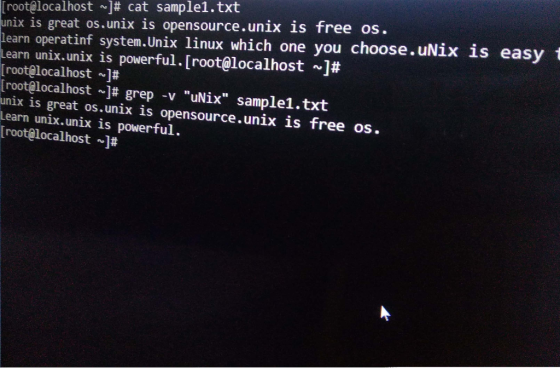
3- grep –v- this command ignores the matching pattern and gives the result that doesn’t match with pattern. You can see the below image.
grep –v “uNix” sample1.txt
It gives the result that doesn’t match this pattern (uNix).
If we give command of step 2 result is- it will match the pattern exactly where it will find that pattern it will print that lines. While in step 3 it is giving the result that does not match the pattern. It is the main difference step 2 and step 3.
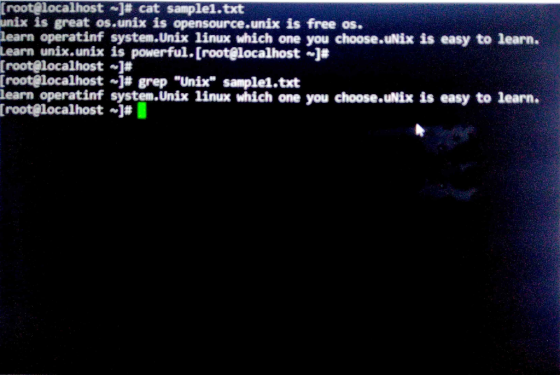
4- grep “unix” sample1.txt
This command will match this pattern in a file and display that whole line. Because grep command is used to search files for a particular pattern of characters and display all lines that contain that pattern. This is the main syntax to search a pattern that’s why it will search pattern and display all lines related to it.
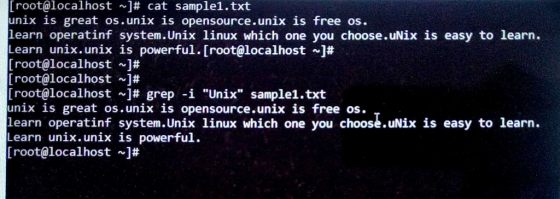
5- The –i option enables to search for a string case-insensitively in the given file. It matches the words not case. Suppose we are searching for “inn” word, in this case, it will display all lines which contain “inn” word, does not matter whether the first letter capital or small.
Step 2- but In step 2 we were searching for “Inn” word in a file. It displayed line only which contain “Inn” word exactly the same. The first letter should be capital.
Step 3- option was –v (grep –v “Inn”) by this command, it displayed all lines which don’t contain this pattern(Inn) or if contain “inn” it will display. Because it ignores the matching pattern.
All three steps displayed different results.
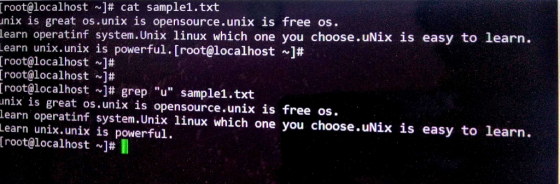
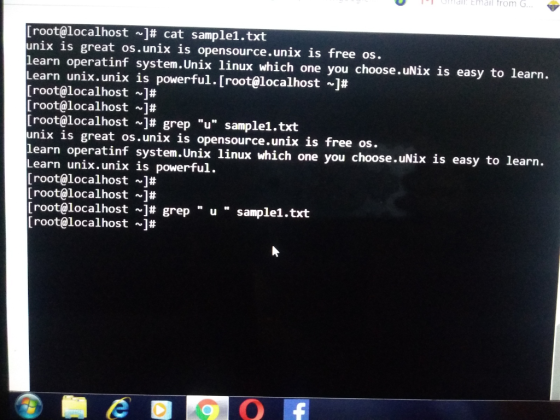
6- grep “I” sample1.txt . This command will display all lines which contain the letter “I” no matter whether is it capital or small. Only letter should be there. Because this grep command to search a pattern in the file. Here it will search for a character in a file.
7- grep “ I “ sample1.txt. This command will display nothing. Because the pattern does not match in file. grep command searches the pattern which enclosed in parenthesis here 2 space is in a pattern. But this pattern does not contain the file’s line. After space, this considers a new string is there. That’s why this pattern does not match. If you will give this pattern “ “ only space it will display all lines which have space. Because the pattern is matched.
In step 6 we were given a pattern that it is matching in files and displayed all lines that contain that pattern. Step 7 pattern does not match in a file that’s why it is not giving any result.
[root@localhost ~]# cat sample1.txt unix is great os.unix is opensource.unix is free os. learn operatinf system.Unix linux which one you choose.uNix is easy t Learn unix.unix is powerful. [root@localhost ~]# [root@localhost ]# [root@localhost ]# grep - v "uNix" sample1.txt unix is great os.unix is opensource.unix is free os. Learn unix.unix is powerful. [root@localhostJ#
[root@localhost # cat sample1.txt unix is great os.unix is opensource.unix is free os. learn operatinf system.Unix linux which one you choose.uNix is easy Learn unix.unix is powerful. [root@localhost ]# [root@localhost ]# [root@localhost j# grep "Unix" sample1 . txt learn operatinf system.Unix linux which one you choose.uNix is easy to learn. [root@localhostj#I to learn.
[root@localhost ~]# cat sample1.txt unix is great os.unix is opensource.unix is free os. learn operatinf system.Unix linux which one you choose.uNix is easy to learn. Learn unix.unix is powerful.[root@localhost]# [root@localhost ]# [root@localhost ~]# [root@localhost ~# grep -i "Unix" sample1.txt unix is great os.unix is opensource.unix is free os. learn operatinf system.Unix linux which one you choose.uNix is easy to learn. Learn unix.unix is powerful. [root@localhost # CS canned with CamScanner
[root@localhost ]# cat sample1.txt unix is great os.unix is opensource.unix is free os. learn operatinf system.Unix linux which one you choose.uNix is easy to learn. Learn unix.unix is powerful. [root@localhost ~]# [root@localhost ]# [root@localhost ]# [root@localhost ~]# grep "u" sample1.txt unix is great os.unix is opensource.unix is free os. learn operatinf system.Unix linux which one you choose.uNix is easy to learn. Learn unix.unix is powerful. [root@localhost ]# CS Scanned with CamScanner
al Email from G [root@localhost ~]# cat sample1.txt unix is great os.unix is opensource.unixis free os. learn operatinf system. Unix linux which one you choose.uNix is easy to learn. Learn unix.unix is powerful. [root@localhost ~]# [root@localhost ~]# [root@localhost ~]# [root@localhost ~]# grep "u" sample1.txt unix is great os.unix is opensource.unix is free os. learn operatinf system.Unix linux which one you choose.uNix is easy to learn. Learn unix.unix is powerful. [root@localhost ~]# [root@localhost ~]# [root@localhost ~]# grep [root@localhost ]# sample1.txt e
Add Answer to:
Project 3-7
In this hands-on project, you use the grep and egrep commands
alongside regular ex...
Project 4-4 In this hands-on project, you make and view links to files and directories. Switch to...
Project 4-4 In this hands-on project, you make and view links to files and directories.Switch to a command-line terminal (tty2) by pressing Ctrl+Alt+F2 and log in to the terminal using the user name of root and the password of secret.At the command prompt, type cd samples and press Enter. Next, type ls -F at the command prompt and press Enter. What files do you see? Next, type ls -l at the command prompt and press Enter. What is the link...
WITH SCREENSHOTS PLEASE Linux+ Guide to Linux Certification Project 9-3 In this hands-on project, you run...
WITH SCREENSHOTS PLEASE Linux+ Guide to Linux Certification Project 9-3 In this hands-on project, you run processes in the background, kill them using the kill and killall commands, and change their priorities using the nice and renice commands. 1. On your Fedora Linux virtual machine, switch to a command-line terminal (tty2) by pressing Ctrl+Alt+F2 and log in to the terminal using the user name of root and the password of LNXrocks!. 2. At the command prompt, type sleep 6000 and...
On your Fedora Linux virtual machine, switch to a command-line terminal (tty2) by pressing Ctrl+Alt+F2 and...
On your Fedora Linux virtual machine, switch to a command-line terminal (tty2) by pressing Ctrl+Alt+F2 and log in to the terminal using the user name of root and the password of LNXrocks!. At the command prompt, type cat /etc/shadow and press Enter. Record the encrypted password for bozo’s user account. At the command prompt, type passwd –l bozo and press Enter to lock bozo’s user account. At the command prompt, type cat /etc/shadow and press Enter. What has been changed...
In this hands-on project, you compile and install a program from source code. On your Fedora...
In this hands-on project, you compile and install a program from source code. On your Fedora Linux virtual machine, switch to a graphical terminal (tty1) by pressingCtrl+Alt+F1 and log in to the GNOME desktop using the user name of user1 and the password of LNXrocks!. Open the Firefox Web browser and download the source code tarball for rdesktop 1.8.2 (rdesktop-1.8.2.tar.gz) from www.rdesktop.org. Save the source code tarball to the default location (/home/user1/Downloads) and log out of the GNOME desktop when...
On your Fedora Linux virtual machine, switch to a command-line terminal (tty2) by pressing Ctrl+Alt+F2 and...
On your Fedora Linux virtual machine, switch to a command-line terminal (tty2) by pressing Ctrl+Alt+F2 and log in to the terminal using the user name of root and the password of LNXrocks!. At the command prompt, type ps –ef | grep bash and press Enter to view the bash shells that are running in memory on your computer. Record the PID of the bash shell running in your terminal (tty2): . At the command prompt, type kill –l and press...
with SCREENSHOTS PLEASE Linux+ Guide to Linux Certification Project 9-4 In this hands-on project, you view...
with SCREENSHOTS PLEASE Linux+ Guide to Linux Certification Project 9-4 In this hands-on project, you view and manage processes using the top command-line utility. 1. On your Fedora Linux virtual machine, switch to a command-line terminal (tty2) by pressing Ctrl+Alt+F2 and log in to the terminal using the user name of root and the password of LNXrocks!. 2. At the command prompt, type top and press Enter. 3. From the output on the terminal screen, record the following information: a....
On your Fedora Linux virtual machine, switch to a command-line terminal (tty2) by pressing Ctrl+Alt+F2 and...
On your Fedora Linux virtual machine, switch to a command-line terminal (tty2) by pressing Ctrl+Alt+F2 and log in to the terminal using the user name of root and the password of LNXrocks!. At the command prompt, type sleep 6000 and press Enter to start the sleep com- mand, which waits 6000 seconds in the foreground. Do you get your prompt back after you enter this command? Why? Send the process an INT signal by typing theCtrl+c key combination. At the...
I need screenshots of every step please Case Projects Case Project 7-1: Use SSH in Ubuntu...
 I need screenshots of every step please
Case Projects Case Project 7-1: Use SSH in Ubuntu In this project, you learn to use SSH in Ubuntu. Using the Ubuntu VMs you created in the case projects in Chapters 2 and 3, follow the steps to use SSH. Using the VM that has Ubuntu Server installed, do the following: 1. Start the VM and log on 2. SSH is included in Ubuntu Server but is not installed. Enter this command to...
I need screenshots of every step please
Case Projects Case Project 7-1: Use SSH in Ubuntu In this project, you learn to use SSH in Ubuntu. Using the Ubuntu VMs you created in the case projects in Chapters 2 and 3, follow the steps to use SSH. Using the VM that has Ubuntu Server installed, do the following: 1. Start the VM and log on 2. SSH is included in Ubuntu Server but is not installed. Enter this command to...
Project 4-3: In the following steps, you will learn more about the PING (Packet Internet Grouper)...
Project 4-3: In the following steps, you will learn more about the PING (Packet Internet Grouper) utility, which can be used on a network running IPv4 to verify that TCP/IP is configured correctly and communicating with the network. A ping test is typically the first thing network professionals try when troubleshooting a TCP/IP connection problem. For this project, you can use any type of workstation that's running TCP/IPv4, preferably one connected to the Internet. The output described in the following...
. Long on to a PC with the administrator account, or an account that has administrator privilege....
 . Long on to a PC with the administrator account, or an account that has administrator privilege. Please take a note of your system information and location where you perform the lab. Open the command prompt. For Windows 10, type cmd in Cortona. For Windows XP. choose Start à Run, and type cmd in the Open field. For Windows 7, click on Start, enter cmd in "Search program and file, and choose "cmd.exe from search result. For Windows 8 press...
 I need screenshots of every step please
Case Projects Case Project 7-1: Use SSH in Ubuntu In this project, you learn to use SSH in Ubuntu. Using the Ubuntu VMs you created in the case projects in Chapters 2 and 3, follow the steps to use SSH. Using the VM that has Ubuntu Server installed, do the following: 1. Start the VM and log on 2. SSH is included in Ubuntu Server but is not installed. Enter this command to...
I need screenshots of every step please
Case Projects Case Project 7-1: Use SSH in Ubuntu In this project, you learn to use SSH in Ubuntu. Using the Ubuntu VMs you created in the case projects in Chapters 2 and 3, follow the steps to use SSH. Using the VM that has Ubuntu Server installed, do the following: 1. Start the VM and log on 2. SSH is included in Ubuntu Server but is not installed. Enter this command to...
 . Long on to a PC with the administrator account, or an account that has administrator privilege. Please take a note of your system information and location where you perform the lab. Open the command prompt. For Windows 10, type cmd in Cortona. For Windows XP. choose Start à Run, and type cmd in the Open field. For Windows 7, click on Start, enter cmd in "Search program and file, and choose "cmd.exe from search result. For Windows 8 press...
Most questions answered within 3 hours.
-
Where is the error in this code sequence?
String s1 = "Hello";
String s2 = "ello";...
asked 10 months ago -
Financial data for Joel de Paris, Inc., for last year
follow:
Joel de Paris, Inc.
Balance...
asked 10 months ago -
Consider this reaction:
Al2(SO4)3 (aq)+ BaCl3
(aq) Al2Cl6 (aq)- +
3BaSO4(s) . What is the...
asked 10 months ago -
Suppose that Savneet is considering increasing her
recent random sample from 20 car rentals to 40...
asked 10 months ago -
Trucks arrive at an unloading terminal at an average rate of 120
per hour.
Trucks arrive...
asked 10 months ago -
Why are methanol and ethanol completely soluble in water while
octanol is not very little soluble....
asked 10 months ago -
A facilities manager at a university reads in a research report
that the mean amount of...
asked 10 months ago -
When the CuSO4 is rehydrated by adding water to the anhydrous
compound, is this an endothermic...
asked 10 months ago -
A ray of sunlight is passing from diamond into crown glass; the
angle of incidence is...
asked 10 months ago -
A block of mass 0.249 kg is placed on top of a light, vertical
spring of...
asked 10 months ago -
how do the kidneys compensate in the presences of acidosis
a) trigger hyperventilate
b) reserve acid...
asked 10 months ago -
Question 501 pts
The rental rate of capital to the firm increases. Which of the
following...
asked 10 months ago